📄 Introduction
Connecting a login screen to a database sounds simple—until you actually try to do it.
The Level 1 and Level 2 versions of the Teacher Assistant App focused on basic CRUD operations, CSV-based storage, and single-user authentication. As the app enters Level 3, development moves beyond simple screens into real application workflows.
At this stage, the app no longer just displays UI — it validates users, connects to a database, and restricts dashboard access through authentication.
This post covers the implementation of a login panel using Rust and egui, its database-backed authentication flow, and the practical issues faced during development.
Note: This application is still under active development, and the design shown here is not the final version.
With the login flow defined, the first technical requirement for Level 3 was establishing a reliable connection between the application and the database.
🗄️ Setting Up PostgreSQL Connectivity
Before implementing authentication, Level 3 required a clean and reliable database setup. Since earlier versions of the Teacher Assistant App used sample data for UI and CRUD testing, the database needed to be reset before introducing login and multi-user workflows.
Cleaning Up Level 2 Sample Data
All test data added during Level 2 development was removed to start with a clean state. This helps avoid inconsistencies while validating authentication and dashboard access.
TRUNCATE TABLE
    attendance,
    grades,
    students,
    subjects,
    classes,
    teachers,
    reports,
    login
RESTART IDENTITY CASCADE;
This approach ensures faster cleanup and resets auto-generated IDs, which is useful when testing authentication logic.
Why sqlx (and Why Version 0.7)?
For Level 3, the database layer was migrated to sqlx.
This choice was driven by simplicity and control:
- Direct SQL queries are easier to reason about in GUI applications
- No ORM abstraction or generated schema files
- Frequent schema changes do not require regenerating schema.rs
- Easier debugging during early development stages
Although a newer version is available, sqlx 0.7 is used in this app to maintain API stability and avoid breaking changes while core workflows are still evolving.
Adding Database Dependencies
Only the required database-related dependencies were added to keep the setup minimal and focused.
# Database connectivity (Level 3)
sqlx = { version = "0.7", features = ["runtime-tokio-native-tls", "postgres"] }
dotenvy = "0.15"
anyhow = "1"
futures = "0.3"
The dotenvy crate is used to load environment variables securely during development.
Securing Database Credentials
To avoid hardcoding sensitive information, database credentials are stored in a .env file.
# user:password are created in postgreSQL
DATABASE_URL=postgres://user:password@localhost/teacher_assistant
The .env file is added to .gitignore to ensure credentials are never committed to version control.
This setup keeps local development secure while remaining simple.
File Responsibilities in src/
To keep the codebase organized, responsibilities are clearly separated:
- db.rs – database initialization and shared DB access
- app.rs – application state and UI logic
- main.rs – application entry point and application wiring
This structure allows the UI to interact with the database without tightly coupling UI code and database logic.
Verifying Database Connectivity
Before building the login UI, a simple check was added to confirm that Rust could successfully connect to PostgreSQL.
mod db;
mod app;

use db::Database;
use dotenvy::dotenv;
use std::env;

#[tokio::main]
async fn main() -> anyhow::Result<()> {
    // Load .env file
    dotenv().ok();

    // Fetch DB URL from environment
    let database_url = env::var("DATABASE_URL")
        .expect("❌ DATABASE_URL not set in .env file");

    // Connect to PostgreSQL
    let db = Database::new(&database_url)
        .await
        .expect("❌ Failed to connect to PostgreSQL");

    println!("✅ Connected to PostgreSQL!");

    // Launch egui app
    let native_options = eframe::NativeOptions::default();

    // IMPORTANT → handle Result from run_native
    let _ = eframe::run_native(
        "Teacher Assistant App",
        native_options,
        Box::new(|_cc| Box::new(app::TeacherApp::new(db))),
    );
    Ok(())
}
Since sqlx is async, the application entry point is initialized with the Tokio runtime. This early verification helped catch configuration issues before authentication logic was introduced.
With database connectivity verified, the next step was designing a login panel that interacts with this backend.
🔐 Login Panel Implementation
With database connectivity verified, the login panel becomes the entry point to the application. At Level 3, this screen is responsible for validating users and controlling access to the dashboard.
The login panel UI design is finalized at this stage, and the code snippets shown here focus on the core logic of the panel.
The dashboard layout and related panels are still evolving, while the login flow remains stable.
Application State (Login-Related)
pub struct TeacherApp {
    pub db: Database,
    pub logged_in_teacher: Option<i32>,

    // Login UI state
    pub username: String,
    pub password: String,
    pub login_error: Option<String>,
    pub login_pending: bool,
}
Explanation:
This snippet defines the minimum application state required for authentication.
- logged_in_teacher: Option
is used instead of a boolean so the application can store the authenticated teacher’s unique ID once login succeeds. This avoids re-querying the database and makes it easier to load teacher-specific data later. - username and password store user input from the login form.
- login_pending is used to ensure that authentication is triggered only once per click, preventing repeated database calls during egui’s redraw cycle.
- login_error captures authentication failures without mixing UI rendering and login logic.
The login state lives inside app.rs because authentication directly controls which part of the UI is rendered (login screen vs dashboard).
Keeping it here avoids scattering state across multiple modules.
Login UI Rendering
fn show_login_ui(&mut self, ctx: &egui::Context) {
    egui::CentralPanel::default()
        .frame(egui::Frame::none())
        .show(ctx, |ui| {
            ui.vertical_centered(|ui| {
                ui.add_space(80.0);

                ui.label("Staff ID");
                ui.add_sized(
                    [300.0, 38.0],
                    egui::TextEdit::singleline(&mut self.username)
                        .hint_text("Enter your Staff ID"),
                );

                ui.add_space(20.0);

                ui.label("Password");
                ui.add_sized(
                    [300.0, 38.0],
                    egui::TextEdit::singleline(&mut self.password)
                        .password(true)
                        .hint_text("Enter your password"),
                );

                ui.add_space(30.0);

                if ui.button("Login").clicked() {
                    self.login_pending = true;
                }
            });
        });
}
Explanation:
This snippet represents the core logic of the login UI, not its visual styling.
CentralPanel::default().frame(Frame::none())is used to:- disable the default panel background,
- allow custom background styling to be applied elsewhere,
- and keep this function focused purely on user interaction.
- The layout is vertically centered to:
- provide a consistent login experience across screen sizes,
- and keep user attention on the authentication fields.
- Only input handling and the login trigger are included here.
Visual elements such as background effects, colors, and layout polish are intentionally handled outside this function to keep the login logic stable and readable.
Login Flow Inside the Update Loop
In an egui application, all UI rendering and state transitions happen inside the update() method provided by the eframe::App trait.
For this reason, login handling, authentication checks, and dashboard access control are all managed in one place.
impl eframe::App for TeacherApp {
    fn update(&mut self, ctx: &egui::Context, _frame: &mut eframe::Frame) {

        // Handle login action once per click
        if self.login_pending {
            self.login_pending = false;

            let staff_id = self.username.clone();
            let password = self.password.clone();

            let result = futures::executor::block_on(
                self.db.verify_login(&staff_id, &password)
            );

            match result {
                Ok(Some(teacher_id)) => {
                    self.logged_in_teacher = Some(teacher_id);
                    self.login_error = None;
                }
                Ok(None) => {
                    self.login_error = Some("Invalid Staff ID or Password".into());
                }
                Err(e) => {
                    self.login_error = Some(format!("Login failed: {}", e));
                }
            }
        }

        // Authentication gate: Login → Dashboard
        if self.logged_in_teacher.is_none() {
            self.show_login_ui(ctx);
        } else {
            self.show_dashboard_ui(ctx);
        }
    }
}
Explanation:
This snippet represents the entire authentication control flow of the application.
- The update() method acts as the central loop where:
- user actions are processed,
- application state is updated,
- and UI transitions are decided.
- Login handling is triggered only when login_pending is set, preventing repeated database calls during egui’s continuous redraw cycle.
- The authentication gate is enforced on every frame:
- if no authenticated teacher is present, the login panel is shown,
- once authentication succeeds, control shifts to the dashboard.
By keeping login execution, authentication checks, and UI routing inside update(), the application maintains a single, predictable source of truth for access control.
This design also allows future role-based logic (Admin vs Teacher) to be added without changing the overall flow.
Database Authentication Logic
pub async fn verify_login(
    &self,
    staff_id: &str,
    password: &str,
) -> anyhow::Result<Option<i32>> {
    let record = sqlx::query!(
        "SELECT teacher_id, password_hash FROM login WHERE username = $1",
        staff_id
    )
    .fetch_optional(&self.pool)
    .await?;

    let Some(row) = record else {
        return Ok(None);
    };

    let parsed_hash = PasswordHash::new(&row.password_hash)?;
    let verified = Argon2::default()
        .verify_password(password.as_bytes(), &parsed_hash)
        .is_ok();

    Ok(verified.then_some(row.teacher_id))
}
Explanation:
This snippet handles credential verification, independent of the UI.
- The database stores only the password hash, never plaintext passwords.
- The password is verified in Rust using Argon2, not in SQL.
- Returning Option
cleanly separates: - invalid credentials,
- valid logins,
- and database errors.
This design keeps authentication secure, explicit, and easy to extend.
Temporary Development Credentials
During development, a temporary login account is used to validate the authentication flow.
- Staff ID: M1423
- Password: generated once, hashed using Argon2, and stored in the database
This allows end-to-end testing of the login → authentication → dashboard flow without exposing real user credentials.
These credentials are strictly for development and will be removed once role-based authentication is finalized.
Admin and Teacher Login (Planned)
The login system is designed to support both Admin and Teacher accounts.
All users authenticate through the same login panel. Dashboard access and permissions will be determined after authentication based on assigned roles.
This approach allows the login UI to remain unchanged while the application scales.
Authentication Flow Overview
At a high level, the authentication process can be summarized as:
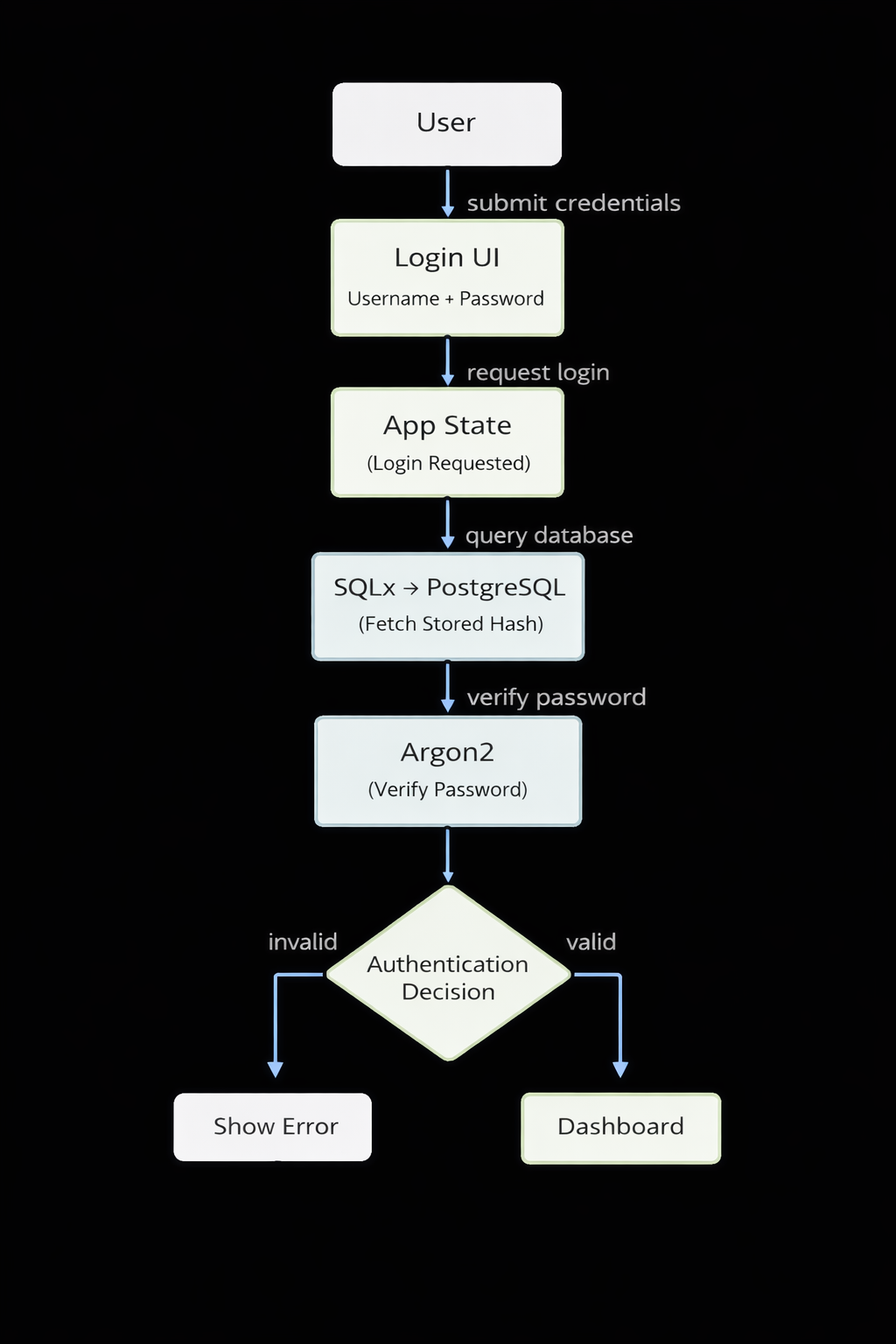
Authentication flow overview
🛠️ Errors and Corrections
While integrating database connectivity and authentication in Level 3, several issues were encountered. These were not unexpected and helped clarify design decisions and implementation boundaries.
1️⃣ TRUNCATE TABLE Notice During Database Cleanup
-
What happened
While clearing sample data from Level 2, PostgreSQL displayed a notice when truncating multiple tables. -
Why it happened
The tables were connected through foreign key relationships.
Using TRUNCATE … CASCADE correctly removed dependent data, and PostgreSQL reported this as a notice rather than an error. -
How it was handled
The notice was acknowledged and the cleanup proceeded as expected.
This confirmed that table relationships were correctly enforced before moving to authentication testing.
2️⃣ PostgreSQL Authentication Failed (Invalid Database Credentials)
-
What happened
The application failed to connect to PostgreSQL during startup with an authentication error. -
Why it happened
The database username or password in the .env file did not match the PostgreSQL user configuration. -
How it was fixed
The credentials in .env were corrected and an early database connection check was added during application startup.
Failing early made configuration issues immediately visible.
3️⃣ Missing eframe::App Trait Implementation
-
What happened
The application compiled successfully but failed to run because the main app struct did not implement the eframe::App trait. -
Why it happened
The UI logic was implemented correctly, but the required trait implementation was missing in app.rs. -
How it was fixed
The eframe::App trait was implemented for the main application struct, allowing egui’s update loop to function as expected.
This reinforced how strongly Rust enforces application structure through traits.
4️⃣ sqlx::query / query! Related Errors
-
What happened
Database queries failed to compile or execute during early authentication testing. -
Why it happened
The issue was caused by mismatches between SQL queries and the database schema, as well as incorrect assumptions about returned columns. -
How it was fixed
Queries were aligned explicitly with the database schema, and result handling was adjusted to match expected types.
This also reinforced the decision to use direct SQL queries for clarity during early development.
🖼️ Login Panel and Dashboard Preview
Below are preview screenshots of the login panel and dashboard as they currently stand during Level 3 development.
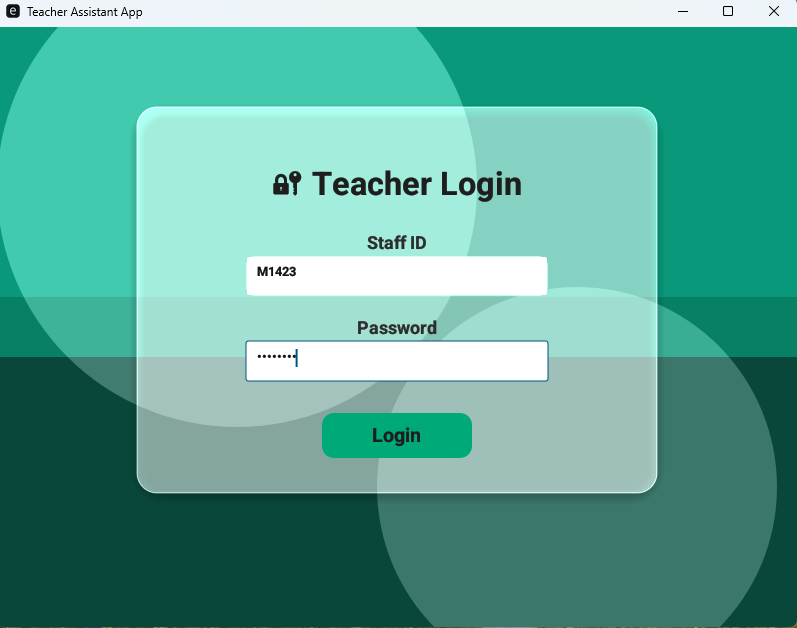
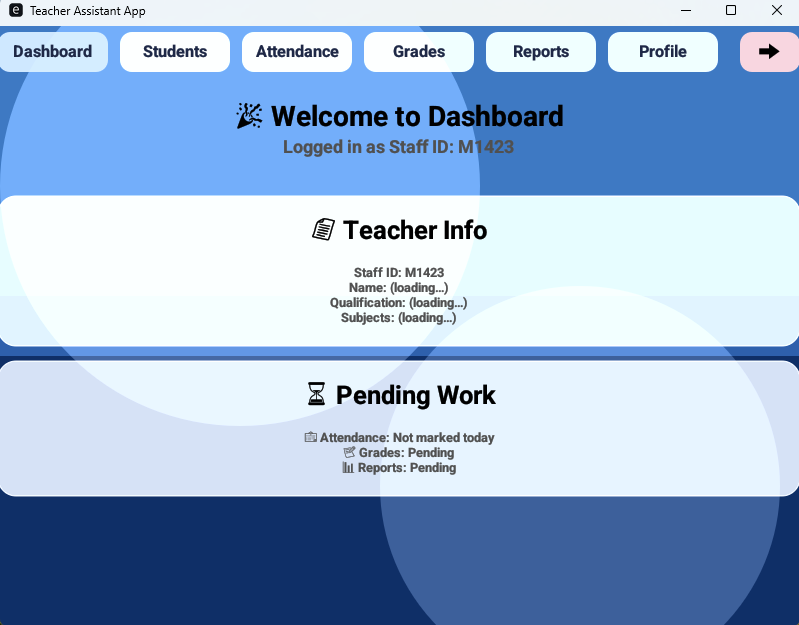
Click the arrows to navigate through images
📜 Conclusion
Level 3 marks a shift in the Teacher Assistant App from UI-driven features to real application workflows. With database connectivity and authentication in place, the login system now serves as a stable entry point connecting the UI, database, and access control.
This milestone establishes a foundation on which future Level 3 features can be built without reworking core authentication logic.
🔜 Next on Techn0tz
Upcoming posts will focus on role-based dashboards, student management tied to authenticated users, and refining the Level 3 dashboard experience.
More Level 3 updates will be shared on Techn0tz🚀.