📄 Introduction
An Excel sheet is often the starting point of student record management. It begins as a simple list — names, roll numbers, sections, and contact details. At first, it feels sufficient. Easy to edit, share and maintain.
But as updates accumulate, the sheet gradually takes on a larger responsibility. It starts behaving like a system — tracking transitions, reflecting class changes, and preserving records over time.
In the earlier phases of Level 1, Level 2 and Dashboard + CRUD the Teacher Assistant application, a role-based dashboard was introduced, student records were stored using CSV files, and CRUD operations were implemented directly in the interface.
But one important question remained:
Can student data be exported — or external Excel files integrated into a live database — without introducing duplication, stale records, or unintended data loss?
This phase explores the design of a Smart Sync mechanism — a structured import workflow that:
- Inserts new records
- Updates existing ones
- Optionally removes records missing from the source file
- Supports Excel export for a single class or all students (admin)
- Preserves safety through confirmation safeguards
- Works consistently across SQLite (teacher mode) and PostgreSQL (organization mode)
The objective is not simply to import rows — but to maintain alignment between evolving Excel data and a structured database.
↔️ Why Simple Excel Import is not Enough
Excel works well for maintaining student lists. It allows structured editing, quick corrections, and easy sharing between staff. For many classrooms, it remains the most practical working format.
Adding an import feature to an application may seem like the natural next step. The file is read, rows are inserted into the database, and the updated list appears in the interface. On the surface, the workflow feels complete.
However, import alone does not guarantee alignment.
- If new rows are simply inserted, duplicates can accumulate.
- If existing rows are overwritten without careful checks, unintended changes may slip through. And
- If missing entries are ignored, the database slowly diverges from the source file over time.
The issue is not Excel itself — but the assumption that importing rows is enough to maintain consistency.
What is needed is not just data transfer, but controlled synchronization.
🧱 Designing the Smart Sync Workflow
Once Excel import was introduced as a feature, the challenge was no longer about reading rows from a file. The real task was ensuring that Excel data could be integrated into a live database without introducing inconsistencies.
Student records evolve continuously throughout the academic year. New students join, contact details change, and some students move between sections or leave the class entirely. A simple import mechanism that blindly inserts rows cannot account for these transitions.
The Smart Sync workflow was designed to handle this evolving data safely. Instead of treating Excel import as a single operation, the process was divided into structured stages that allow the system to understand what has changed and respond accordingly.
At a high level, the workflow involves exporting structured data, reading Excel rows into Rust models, applying controlled insert or update operations, and optionally synchronizing deletions when records are removed from the source sheet.
📤 Exporting Student Data to Excel
Exporting student data serves two important purposes. It allows teachers to work with data using a familiar tool, and it also provides a consistent template that can later be re-imported into the application.
Rather than maintaining separate export implementations, the export logic accepts an optional class identifier. When a class is selected, only that class is exported. If no class is provided, the system exports all student records. This keeps the logic simple while supporting both teacher-level and administrative workflows.
During export, the application also defines the column structure of the Excel sheet. These headers act as the schema for future imports, ensuring that exported files can be safely modified and later re-imported without ambiguity.
pub async fn export_students_to_excel(
    &self,
    class_id: Option<i32>,
    path: &str,
) -> anyhow::Result<()>{

    // Fetch students based on export scope
    let students = if let Some(id) = class_id {
        self.get_students_by_class(id).await?
    } else {
        self.get_all_students().await?
    };

    let mut workbook = Workbook::new();
    let worksheet = workbook.add_worksheet();

    // Header row
    worksheet.write_string(0, 0, "Roll No")?;
    worksheet.write_string(0, 1, "Student Name")?;
    worksheet.write_string(0, 2, "Class")?;
    worksheet.write_string(0, 3, "Section")?;
    worksheet.write_string(0, 4, "Parent Contact")?;
    worksheet.write_string(0, 5, "Parent Email")?;

    for (i, student) in students.iter().enumerate() {
        let row = (i + 1) as u32;
        worksheet.write_string(row, 0, &student.roll_no)?;
        worksheet.write_string(row, 1, &student.student_name)?;
        worksheet.write_string(row, 2, &student.class_name)?;
        worksheet.write_string(row, 3, &student.section)?;
        worksheet.write_string(
            row,
            4,
            student.parent_contact.as_deref().unwrap_or(""),
        )?;
        worksheet.write_string(
            row,
            5,
            student.parent_email.as_deref().unwrap_or(""),
        )?;
    }
    workbook.save(path)?;
    Ok(())
}
Exporting data in this structured format ensures that any Excel file used for future imports already follows the correct schema.
Screenshot: Export options in the Student panel, allowing class-level or full database export.

Click the image to view full size
📥 Reading Excel Data into Structured Models
Before any database operation occurs, Excel data is parsed into a structured representation. Instead of inserting rows directly into the database, each Excel sheet row is converted into a Rust model that represents an import record.
This intermediate step provides better control over the import process. It allows validation, normalization, and transformation to happen before any database modifications are applied.
During parsing, the import logic also performs a few basic safeguards:
- Header rows are skipped
- Incomplete rows are ignored
- Leading and trailing whitespace is trimmed
- Rows with empty roll numbers are discarded
These small checks help ensure that malformed Excel sheet entries do not propagate into the database.
pub fn read_students_from_excel(
    &self,
    path: &str,
) -> Result<Vec<StudentImport>> {

    let mut workbook: Xlsx<_> = open_workbook(path)?;
    let range = workbook.worksheet_range("Sheet1")?;

    let mut students = Vec::new();

    // Iterate through spreadsheet rows
    for row in range.rows().skip(1) {
        if row.len() < 6 {
            continue; // skip invalid rows
        }

        let roll =  row[0].to_string().trim().to_string();
        if roll.is_empty(){
            continue;
        }

        let student = StudentImport {
            roll_no: roll,
            student_name: row[1].to_string().trim().to_string(),
            class_name: row[2].to_string().trim().to_string(),
            section: row[3].to_string().trim().to_string(),
            parent_contact: row[4].to_string().trim().to_string(),
            parent_email: row[5].to_string().trim().to_string(),
        };

        students.push(student);
    }

    Ok(students)
}
By converting Excel sheet rows into structured models first, the system separates data extraction from database operations. This separation keeps the import workflow predictable and easier to maintain.
Screenshot: The Excel template generated by the export feature, used as the structured input for imports.

Click the image to view full size
✒️ Controlled Insert and Update Logic
Once Excel data has been parsed into structured models, the next step is determining how each record should interact with existing database entries.
A naive import would simply insert rows into the database. However, that approach quickly leads to duplicate records when the same student appears in multiple imports.
Instead, the system follows an UPSERT-style workflow.
Rather than performing a lookup query first, the system attempts to insert the record directly. If the insert fails due to the (class_id, roll_no) constraint, the application performs an update instead.
This insert-first strategy avoids an additional lookup query and keeps the import process efficient while maintaining data consistency.
pub async fn import_students_from_excel(
    &self,
    students: Vec<StudentImport>,
) -> Result<(usize, usize, Vec<String>), sqlx::Error> {

    let mut inserted = 0;
    let mut updated = 0;
    let mut excel_rolls = Vec::new();

    for s in students {

        let roll = s.roll_no.trim().to_string();
        excel_rolls.push(roll.clone());

        let class_id = self
            .get_or_create_class_id(&s.class_name, &s.section)
            .await?;

        // Attempt to insert a new student record
        let insert_result = sqlx::query(
            r#"
            INSERT INTO students
            (roll_no, student_name, class_id, parent_contact, parent_email)
            VALUES ($1, $2, $3, $4, $5)
            ON CONFLICT (class_id, roll_no) DO NOTHING
            "#
        )
        .bind(&roll)
        .bind(&s.student_name)
        .bind(class_id)
        .bind(&s.parent_contact)
        .bind(&s.parent_email)
        .execute(&self.pool)
        .await?;

        if insert_result.rows_affected() > 0 {
            inserted += 1;
        } else {

            // If the insert was ignored due to conflict, update the record
            sqlx::query(
                r#"
                UPDATE students
                SET student_name = $1,
                    class_id = $2,
                    parent_contact = $3,
                    parent_email = $4
                WHERE roll_no = $5
                "#
            )
            .bind(&s.student_name)
            .bind(class_id)
            .bind(&s.parent_contact)
            .bind(&s.parent_email)
            .bind(&roll)
            .execute(&self.pool)
            .await?;

            updated += 1;
        }
    }
    Ok((inserted, updated, excel_rolls))
}
This approach ensures that:
- New students are inserted
- Existing student records are updated
- Duplicate entries are avoided
At the same time, the import function keeps track of inserted and updated records, which later helps generate a summary of the import operation.
Screenshot: Importing an Excel sheet into the selected class from the Student panel.

Click the image to view full size
🔄 Optional Synchronization Mode
Insert and update logic ensures that new students are added and existing records remain up to date. However, another scenario must also be considered.
A student might be removed from the Excel file — for example, when transferring to another class or leaving the institution. If the system only inserts and updates records, the database will still retain that outdated entry.
To address this, an optional synchronization mode was introduced.
When Sync Mode is enabled, the system compares the roll numbers from the imported Excel file with the students currently stored in the database for the selected class. Any database record that no longer appears in the Excel sheet is treated as obsolete and removed.
The implementation follows a straightforward comparison process:
- Retrieve all student roll numbers for the selected class from the database
- Compare those roll numbers against the imported Excel list
- Delete only the records that no longer exist in the Excel sheet
pub async fn delete_missing_students(
    &self,
    class_id: i32,
    excel_rolls: Vec<String>,
) -> Result<u64, sqlx::Error> {

    // Get all students currently stored for the class
    let db_rows = sqlx::query(
        "SELECT roll_no FROM students WHERE class_id = $1"
    )
    .bind(class_id)
    .fetch_all(&self.pool)
    .await?;

    let mut removed = 0;

    for row in db_rows {

        let db_roll: String = row.get("roll_no");

        // If the roll number is not present in the Excel file, remove it
        if !excel_rolls.contains(&db_roll) {

            sqlx::query(
                "DELETE FROM students
                 WHERE roll_no = $1 AND class_id = $2"
            )
            .bind(&db_roll)
            .bind(class_id)
            .execute(&self.pool)
            .await?;

            removed += 1;
        }
    }
    Ok(removed)
}
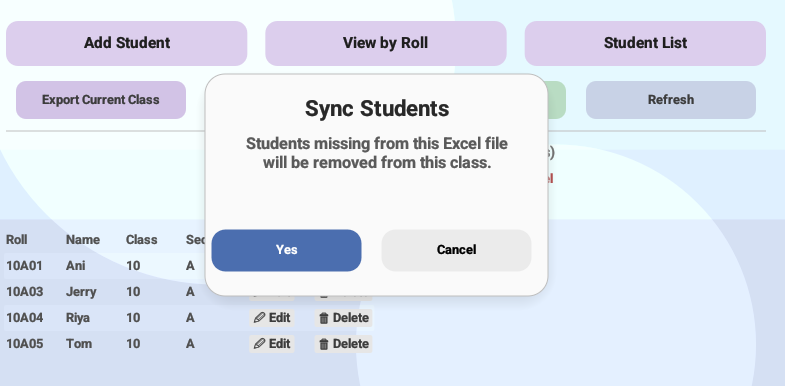
Because deletion can permanently remove records, synchronization is never executed automatically. Instead, the application requires explicit user confirmation before Sync Mode proceeds.
Screenshot: Sync Mode option in the Student panel allowing the system to align database records with the imported Excel file.

Click the image to view full size
🔒 Safety Layer: Preventing Accidental Data Loss
Synchronization keeps the database aligned with the Excel sheet, but it also introduces a sensitive operation — deletion.
If a student is removed from the Excel file and Sync Mode is enabled, the corresponding database record may also be deleted. Without safeguards, this could lead to unintended data loss.
To prevent this, synchronization is never executed automatically. The system first checks whether Sync Mode has been enabled by the user. If it is not enabled, the import process simply updates or inserts records and completes normally.
// Sync Mode requires explicit confirmation before deletion
if self.sync_mode {
    self.show_sync_confirm = true;
} else {
    self.finish_import_summary();
}
When the user confirms synchronization, the application performs a controlled comparison between the imported Excel data and the existing database records.
fn perform_sync_delete(&mut self) {
    if let Some(class_id) = self.selected_class_id {

        let result = pollster::block_on(
            self.db.delete_missing_students(
                class_id,
                self.last_imported_rolls.clone(),
            )
        );

        let removed = match result {
            Ok(count) => count,
            Err(err) => {
                self.student_error =
                    Some(format!("Delete failed: {}", err));
                return;
            }
        };

        self.import_removed = removed as usize;
        self.load_students_pending = true;
        self.finish_import_summary();
    }
}
After synchronization completes, the application presents a concise summary of the import operation.
ui.label(format!("Inserted: {}", self.import_inserted));
ui.label(format!("Updated: {}", self.import_updated));
ui.label(format!("Removed: {}", self.import_removed));
By combining explicit user confirmation, controlled deletion logic, and visible import summaries, the workflow ensures that synchronization remains both safe and predictable.
Screenshot: Confirmation dialog displayed before Sync Mode removes student records missing from the imported Excel sheet.
Click the image to view full size
🎬 Demo Video of the Application
Smart Sync workflow becomes easier to understand when seen in action.
The following demonstration shows the complete process using the Teacher Assistant application running with a local SQLite database.
Demo Note: For the SQLite version shown in this demo, a default administrator account is created on first launch.
Login using Staff ID: ADMIN and Password: admin.

Click the image to watch the demo in a new window
📜 Conclusion
Small systems often begin with simple tools. Designing them carefully is what allows them to grow without becoming fragile.
By introducing a controlled export and Smart Sync workflow, the application bridges the gap between the flexibility of Excel and the reliability of a structured database. Instead of treating spreadsheets as isolated files, they become part of a safer data flow — where new records are inserted, existing entries are updated, and outdated records can be removed through an intentional synchronization step.
This implementation also highlights an important design principle: data import should not simply move rows from one place to another. It should maintain consistency, provide safeguards against accidental loss, and adapt to different environments — from a single-teacher SQLite setup to a multi-user PostgreSQL deployment.
With these mechanisms in place, the Teacher Assistant application moves closer to becoming a practical classroom tool — capable of managing evolving student data while keeping the workflow simple and predictable.
The project continues to evolve step by step.
Future posts will explore attendance tracking, grade management, and reporting features built on top of the same architecture.
Stay tuned on Techn0tz🚀.