📄 Introduction
Entering marks is only half the workflow. The real reporting system begins when those marks turn into report cards.
In the previous post, Dynamic Grades System, the Grades module was built to support flexible mark entry while automatically calculating each student’s total marks and overall percentage. This post takes the next step: turning those calculated results into student report cards using reusable HTML templates and exporting them as PDFs.
Instead of generating PDFs directly, the Teacher Assistant App first creates each report as HTML. That makes the layout easier to preview in a browser, refine through HTML and CSS, and convert into PDF without changing the underlying Rust logic. Rust focuses on preparing the student data, while HTML controls how the final report is presented.
The result is a cleaner reporting pipeline — one that is easier to maintain now and easier to extend later with richer report layouts, subject-wise rows, and email delivery.
🌐 Why Generate HTML Before PDF?
A student report contains structured information such as student details, exam information, totals, percentages, and signatures. While it is possible to generate PDF files directly, creating the report as an HTML document first makes the workflow far easier to manage.
HTML provides a flexible way to design report layouts using familiar HTML and CSS. Since the report can be opened in any web browser, the layout can be reviewed before generating the final PDF. If the design needs adjustment, the HTML template can be updated without changing the Rust code responsible for processing student data.
Another advantage of this approach is the clear separation between data and presentation. Rust focuses on collecting student information and replacing template placeholders with actual values, while HTML defines how the report is displayed. This keeps the reporting workflow easier to maintain and makes the template simpler to extend in future iterations.
The next part of the workflow is creating a reusable HTML template that Rust can populate with student data during report generation.
🧩 Creating a Reusable HTML Report Template
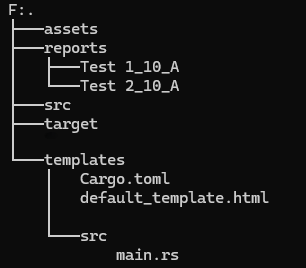
Every student report follows the same layout, but the information inside the report changes for each student. Instead of constructing the entire report using Rust code, the layout is stored in a reusable HTML template. During report generation, Rust loads this template, replaces the placeholders with the corresponding student information, and saves the completed report as an HTML document.
Separating the report layout from the application logic makes the project easier to maintain. Changes to fonts, colors, spacing, logos, or signatures can be made by editing the HTML template alone, while the Rust code responsible for processing student data remains unchanged.
The HTML template is stored inside the application folder as shown below.
Screenshot:
Click the image to view full size
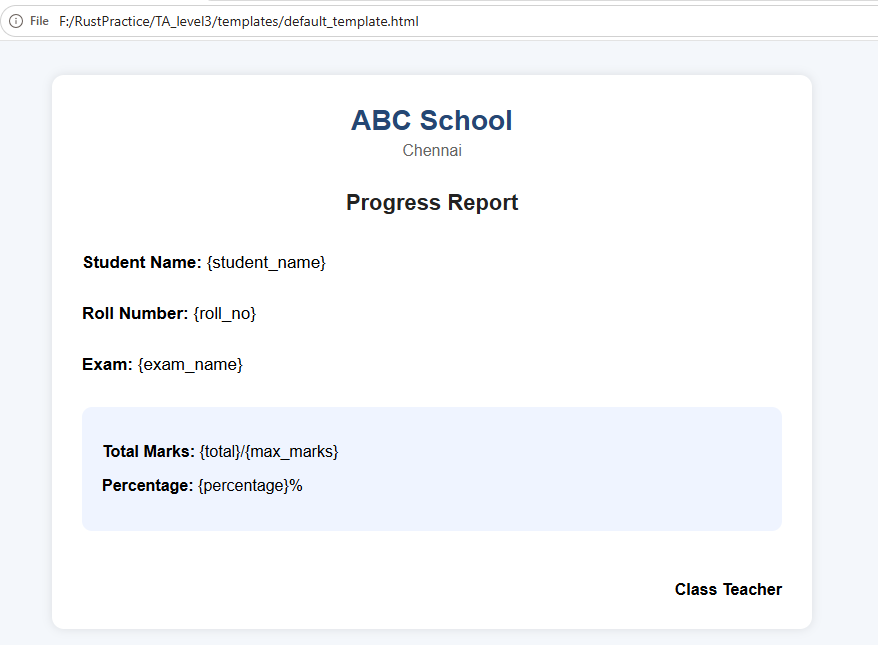
The following screenshot shows the reusable HTML template before any student information is inserted.
Screenshot:
Click the image to view full size
Notice that the template already contains the complete report layout, including the school heading, student information, summary section, and signature area. Instead of actual values, it uses placeholders such as {student_name}, {roll_no}, {exam_name}, {total}, and {percentage}. During report generation, Rust replaces these placeholders with the corresponding student data and produces the final HTML report.
The current template focuses on the basic report structure with student details and summary values such as total marks and percentage. As the report module evolves, the same layout can be extended with subject-wise marks, additional placeholders, and richer report card sections without changing the overall HTML generation workflow.
With the layout in place, the template can now be loaded in Rust and converted into a completed student report by replacing each placeholder with actual student data.
⚙️ Generating HTML Reports Before PDF Export
Although the visible action in the Teacher Assistant App is Export PDF, the report generation workflow begins with HTML. Before a PDF can be created, the application generates a separate HTML report for every student in the selected class. These HTML files are stored inside an exam-and-class-specific folder and later reused as the source for PDF conversion.
This responsibility is handled by generate_html_reports(). The function loops through the loaded students, calculates each student’s total marks and overall percentage, generates the HTML content for the report, and writes the completed file to disk.
fn generate_html_reports(
    &mut self
) -> Result<std::path::PathBuf, String> {

    self.generated_reports.clear();

    let exam_name = Self::sanitize_filename(&self.selected_exam_name());

    let class_name = self.classes
        .iter()
        .find(|c| Some(c.class_id) == self.selected_class_id)
        .map(|c| format!("{}_{}", c.class_name, c.section))
        .unwrap_or("UnknownClass".to_string());

    let safe_class = Self::sanitize_filename(&class_name);

    let base_reports_dir = Self::get_reports_base_path();
    let folder_path = base_reports_dir.join(format!("HTML_{}_{}", exam_name, safe_class));

    if let Err(err) = fs::create_dir_all(&folder_path) {
        return Err(format!("Failed to create folder: {}", err));
    }

    let mut saved_count = 0;
    let mut failed_count = 0;

    for student in &self.students {
        let (total, max, percentage) =
            self.calculate_student_percentage(student.student_id as i64);

        let html_report = self.generate_student_html_report(
            student,
            total,
            max,
            percentage,
        );

        let preview = format!(
            "{} ({}) secured {}/{} marks with {:.2}%",
            student.student_name,
            student.roll_no,
            total,
            max,
            percentage
        );

        self.generated_reports.push(preview);

        let safe_name = Self::sanitize_filename(&student.student_name);
        let filename = folder_path.join(format!("{}_{}.html", safe_name, student.roll_no));

        match fs::write(&filename, html_report) {
            Ok(_) => {
                saved_count += 1;
            }
            Err(err) => {
                failed_count += 1;
                println!("Failed to save HTML report: {}", err);
            }
        }
    }

    self.grade_success = Some(format!(
        "{} reports generated, {} failed",
        saved_count, failed_count
    ));
    self.grade_success_time = Some(std::time::Instant::now());
    self.reports_folder_path = folder_path.to_string_lossy().to_string();

    Ok(folder_path)
}
The function begins by building a safe folder name using the selected exam and class. This keeps reports organized by creating separate folders such as HTML_Test1_10_A instead of mixing all generated files into a single location.
It then loops through every student in the selected class. For each student, it calculates the total marks, maximum marks, and percentage using calculate_student_percentage(). These values are passed to generate_student_html_report(), which returns the completed HTML content for that student.
After the HTML content is generated, the report is saved using a sanitized filename based on the student’s name and roll number. At the same time, a short preview string is pushed into generated_reports, allowing the UI to display a quick summary of the generated reports after export.
Code Explanation:
| Code | Explanation |
|---|---|
self.generated_reports.clear() |
Clears previously generated preview entries before creating a fresh set of reports. |
Self::sanitize_filename(...) |
Converts exam, class, and student names into safe file and folder names. |
Self::get_reports_base_path() |
Returns the base directory used for storing generated reports. |
fs::create_dir_all(&folder_path) |
Creates the destination folder for the HTML reports if it does not already exist. |
for student in &self.students |
Iterates through every student loaded for the selected class. |
self.calculate_student_percentage(...) |
Calculates the student’s total marks, maximum marks, and percentage. |
self.generate_student_html_report(...) |
Generates the final HTML report for that student using the reusable template. |
self.generated_reports.push(preview) |
Stores a short preview summary that can be shown in the UI. |
fs::write(&filename, html_report) |
Saves the generated HTML report to disk. |
The report generation loop prepares the student-specific values needed for export, but the reusable template still needs to be turned into a completed report. That final transformation happens inside generate_student_html_report(), where placeholders such as the student name, roll number, total marks, and percentage are replaced with actual values.
🔁 Replacing Placeholders in the HTML Template
generate_student_html_report() turns the reusable template into a finished report for a single student. It takes the calculated totals, maximum marks, percentage, and student details, then inserts those values into the template by replacing its placeholders.
The function reads default_template.html from the templates folder and performs a series of placeholder replacements using the current student’s details and the calculated summary values.
fn generate_student_html_report(
    &self,
    student: &Student,
    total: i32,
    max: i32,
    percentage: f32,
) -> String {

    let template = std::fs::read_to_string("templates/default_template.html")
        .unwrap_or_default();

    template
        .replace("{student_name}", &student.student_name)
        .replace("{roll_no}", &student.roll_no)
        .replace("{exam_name}", &self.selected_exam_name())
        .replace("{total}", &total.to_string())
        .replace("{max_marks}", &max.to_string())
        .replace("{percentage}", &format!("{:.2}", percentage))
}
The function begins by loading the reusable HTML template into a string. Each placeholder is then replaced with the corresponding student value. For example, {student_name} becomes the student’s name, {roll_no} becomes the roll number, and {percentage} is replaced with the calculated percentage formatted to two decimal places.
Here, the reusable layout turns into a real student report. HTML continues to control the visual structure, while Rust is responsible only for supplying the correct values for the current student. That separation keeps the report generation logic simple and makes the template easier to extend with additional fields later.
For simplicity, the function uses unwrap_or_default() while loading the template. In a larger application, this step could return a dedicated error if the template file is missing or unreadable.
Code Explanation:
| Code | Explanation |
|---|---|
read_to_string("templates/default_template.html") |
Loads the reusable HTML template from the templates folder. |
unwrap_or_default() |
Returns an empty string if the template file cannot be read. |
.replace("{student_name}", &student.student_name) |
Inserts the current student’s name into the template. |
.replace("{roll_no}", &student.roll_no) |
Replaces the roll number placeholder. |
.replace("{exam_name}", &self.selected_exam_name()) |
Inserts the selected exam name into the report. |
.replace("{total}", &total.to_string()) |
Replaces the total marks placeholder. |
.replace("{max_marks}", &max.to_string()) |
Replaces the maximum marks placeholder. |
.replace("{percentage}", &format!("{:.2}", percentage)) |
Inserts the student’s percentage with two decimal places. |
After all placeholders are replaced, the function returns a completed HTML string representing that student’s report. generate_html_reports() then writes this string to disk, producing one HTML file per student inside the generated reports folder.
Before those reports can be saved, the export workflow still needs one small helper: exam names, class labels, and student names are not always safe to use directly in Windows file and folder paths.
🧹 Sanitizing File Names for Safe Report Export
Saving the generated HTML reports to disk introduces one practical issue: exam names, class names, and student names are not always safe to use directly in file or folder names. Characters that are valid in normal text can still cause file creation to fail on Windows, so those values need to be cleaned before they are used in report paths.
For example, characters such as /, \, :, *, ?, ", <, >, and | are restricted in Windows file names. If these characters are used directly while creating report folders or student report files, the export process can fail even though the report generation logic itself is correct.
To avoid this, the Teacher Assistant App uses a small helper function that replaces unsupported characters with underscores before building file paths.
fn sanitize_filename(name: &str) -> String {
    name.chars()
        .map(|c| {
            match c {
                '/' | '\\' | ':' | '*' | '?' |
                '"' | '<' | '>' | '|' => '_',
                _ => c,
            }
        })
        .collect()
}
This function scans every character in the input string and replaces any file-system restricted character with an underscore. The result is a safe string that can be used for report folders and exported file names across Windows.
For example, the selected exam name, class name, and student name are all sanitized before being used in paths such as:
| Used For | Original | Sanitized |
|---|---|---|
| Exam | Unit Test:1 |
Unit Test_1 |
| Class | 10/A |
10_A |
| Student | Amritha?J |
Amritha_J |
Code Explanation:
| Code | Explanation |
|---|---|
fn sanitize_filename(name: &str) -> String |
Accepts the original exam, class, or student name and returns a safe file-system friendly string. |
name.chars() |
Iterates through every character in the input string. |
.map(\|c\| { ... }) |
Transforms each character before rebuilding the final file name. |
match c { ... } |
Replaces unsupported file-name characters with _. |
_ => c |
Keeps all other characters unchanged. |
.collect() |
Rebuilds the transformed characters into a new String. |
Although this helper is small, it plays an important role in making report export reliable across different exam names, class labels, and student names. Without it, a single invalid character in a file name could prevent a report from being saved correctly.
Safe file names solve one part of the export problem, but the reports also need a folder structure that keeps different classes and exams from getting mixed together. That is why the generated reports are grouped into dedicated class-and-exam folders before the PDF export step begins.
📂 Organizing Generated Reports into Class-and-Exam Folders
Saving the generated reports requires more than safe file names. The reports also need a folder structure that keeps different classes and exams from getting mixed together. If every student report were written into a single directory, the exported files would quickly become difficult to manage, especially when the same application is used across multiple classes and multiple exams.
To keep the exported reports organized, the Teacher Assistant App groups them using two pieces of context: the selected exam, and the selected class with its section. That information is used to create a dedicated folder for each export batch, so reports generated for different exams or classes are stored separately instead of being mixed together.
let exam_name = Self::sanitize_filename(&self.selected_exam_name());

let class_name = self.classes
    .iter()
    .find(|c| Some(c.class_id) == self.selected_class_id)
    .map(|c| format!("{}_{}", c.class_name, c.section))
    .unwrap_or("UnknownClass".to_string());

let safe_class = Self::sanitize_filename(&class_name);

let base_reports_dir = Self::get_reports_base_path();
let folder_path = base_reports_dir.join(
    format!("HTML_{}_{}", exam_name, safe_class)
);

// Create the folder if it does not exist
if let Err(err) = fs::create_dir_all(&folder_path) {
    return Err(format!("Failed to create folder: {}", err));
}
The generated HTML file for each student is then saved inside this folder using the student’s sanitized name and roll number.
let safe_name = Self::sanitize_filename(&student.student_name);

let filename = folder_path.join(format!(
    "{}_{}.html",
    safe_name,
    student.roll_no
));

match fs::write(&filename, html_report) {
    Ok(_) => {
        saved_count += 1;
    }
    Err(err) => {
        failed_count += 1;
        println!("Failed to save HTML report: {}", err);
    }
}
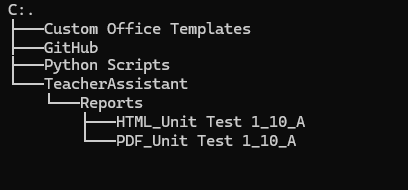
With this structure, a class such as 10-A and an exam such as Unit Test 1 would produce a folder similar to the following:
Screenshot:
Click the image to view full size
This folder-based organization makes report export much easier to manage in practice. Teachers can quickly locate all reports generated for a particular class and exam without manually sorting through unrelated files. It also keeps the workflow consistent when the same report data is later converted into PDF files, since the PDF export follows the same naming and folder structure.
Code Explanation:
| Code | Explanation |
|---|---|
Self::sanitize_filename(&self.selected_exam_name()) |
Converts the selected exam name into a safe folder-friendly string. |
format!("{}_{}", c.class_name, c.section) |
Combines the class name and section into a single label such as 10_A. |
Self::get_reports_base_path() |
Returns the base directory used for storing all generated reports. |
base_reports_dir.join(format!("HTML_{}_{}", exam_name, safe_class)) |
Creates a folder name that groups reports by report type, exam, and class. |
fs::create_dir_all(&folder_path) |
Creates the destination folder if it does not already exist. |
Self::sanitize_filename(&student.student_name) |
Ensures that the student’s name is safe to use in the file name. |
format!("{}_{}.html", safe_name, student.roll_no) |
Builds a unique report file name for each student using the student name and roll number. |
fs::write(&filename, html_report) |
Saves the generated HTML report inside the class-and-exam folder. |
The generated reports now exist as individual HTML files inside a dedicated class-and-exam folder. The final step is converting those HTML reports into PDF files that can be printed, shared, or archived.
🖨️ Exporting Student Reports to PDF
The report workflow ends by converting the generated HTML reports into PDF files that can be printed, shared, or sent to parents. In the Teacher Assistant App, PDF export builds directly on the HTML reports created in the earlier steps: each student report is first generated as HTML, then rendered into a separate PDF file inside the reports folder.
Verifying the Intermediate HTML Output
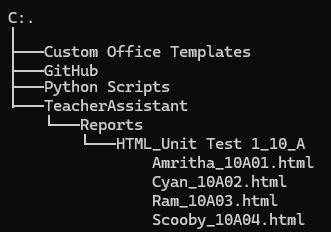
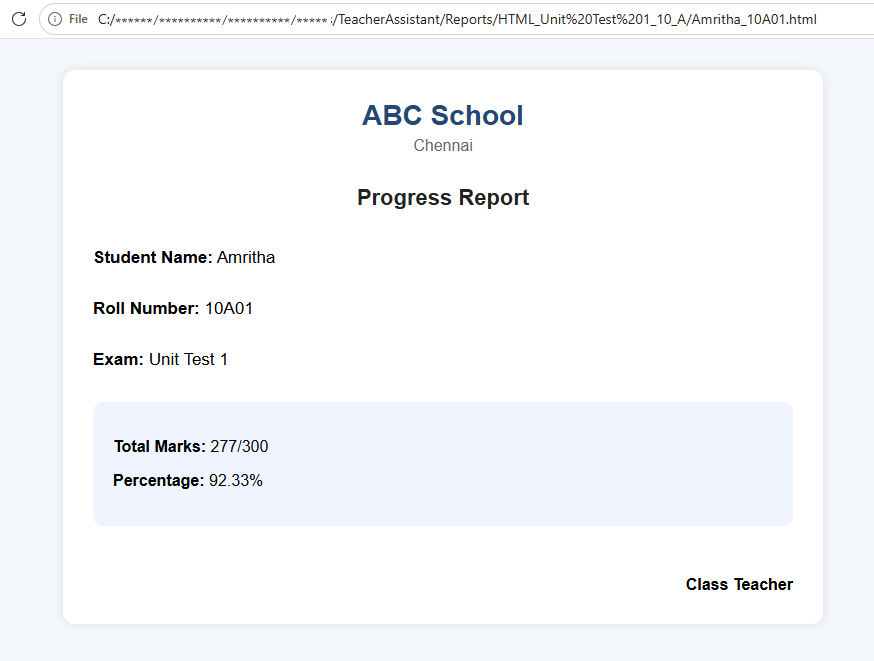
The final output of the app is a PDF, but the intermediate HTML reports are still useful during development and testing because they can be opened directly in a web browser. That makes it easier to verify the report layout before PDF export begins.
Student details, exam name, total marks, maximum marks, percentage values, spacing, and overall formatting can all be checked at the HTML stage. If a placeholder is missing or the template layout needs adjustment, the issue can be corrected in the HTML template and the reports regenerated before converting them into PDFs.
Generated HTML reports stored inside the reports folder.
Screenshot:
Click the image to view full size
Preview of a generated student report opened in the browser before PDF export.
Screenshot:
Click the image to view full size
Because the PDF export reuses the same HTML output, verifying the report in a browser makes it much easier to catch layout or placeholder issues before the final conversion step.
Generating PDFs with Chromium
To generate the final PDF report, the application uses the headless_chrome crate. Instead of rebuilding the report in a different format, the app opens the generated HTML report in a headless Chromium browser and prints that page directly to PDF.
This approach keeps the export workflow consistent because the same HTML and CSS used for browser preview are also used for the final PDF output.
fn convert_html_to_pdf(
    &self,
    html_path: &std::path::Path,
    pdf_path: &std::path::Path,
) -> Result<(), Box<dyn std::error::Error>> {

    use headless_chrome::{
        Browser,
        types::PrintToPdfOptions,
    };

    let browser = Browser::default()?;
    let tab = browser.new_tab()?;

    let html_path_str = html_path.to_string_lossy().replace("\\", "/");
    let html_url = format!("file:///{}", html_path_str);

    tab.navigate_to(&html_url)?;
    std::thread::sleep(std::time::Duration::from_secs(2));
    tab.wait_until_navigated()?;

    let pdf_data = tab.print_to_pdf(Some(PrintToPdfOptions {
        print_background: Some(true),
        prefer_css_page_size: Some(true),
        ..Default::default()
    }))?;

    std::fs::write(pdf_path, pdf_data)?;
    Ok(())
}
The function begins by launching a headless Chromium browser and opening a new tab. The generated HTML report path is then converted into a local file:/// URL so that Chromium can load it like a normal web page.
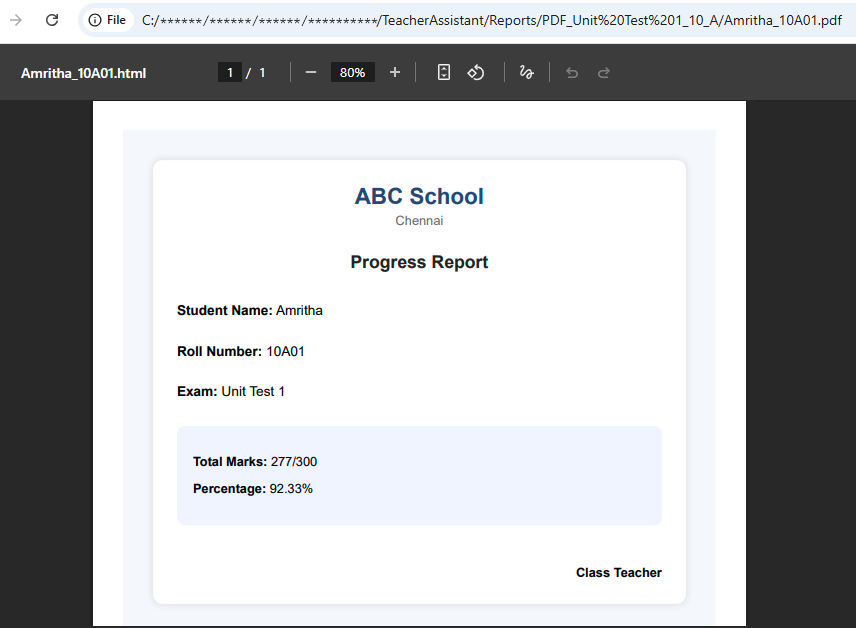
After the page finishes loading, print_to_pdf() captures the rendered report and returns the generated PDF data. That PDF output is then written to the destination file path provided by the application.
Using Chromium for PDF export has an important advantage here: the same report layout previewed in the browser is preserved in the final PDF. That makes the report template much easier to design and refine, because HTML preview and PDF export follow the same rendering path.
Code Explanation:
| Code | Explanation |
|---|---|
Browser::default()? |
Launches a headless Chromium browser instance. |
browser.new_tab()? |
Opens a new browser tab for rendering the report. |
html_path.to_string_lossy().replace("\\", "/") |
Converts the local HTML file path into a browser-friendly format. |
format!("file:///{}", html_path_str) |
Builds a local file URL that Chromium can open. |
tab.navigate_to(&html_url)? |
Loads the generated HTML report in Chromium. |
std::thread::sleep(...) + wait_until_navigated() |
Gives the report page time to finish loading before PDF generation. |
print_to_pdf(...) |
Renders the loaded HTML page as a PDF document. |
print_background: Some(true) |
Preserves background colors and other CSS styling in the PDF output. |
prefer_css_page_size: Some(true) |
Allows the PDF to follow page size settings defined in the HTML/CSS template. |
std::fs::write(pdf_path, pdf_data)? |
Saves the generated PDF bytes to the destination file. |
Generated PDF report after HTML-to-PDF conversion.
Screenshot:
Click the image to view full size
Opening the Generated PDF Folder from the App
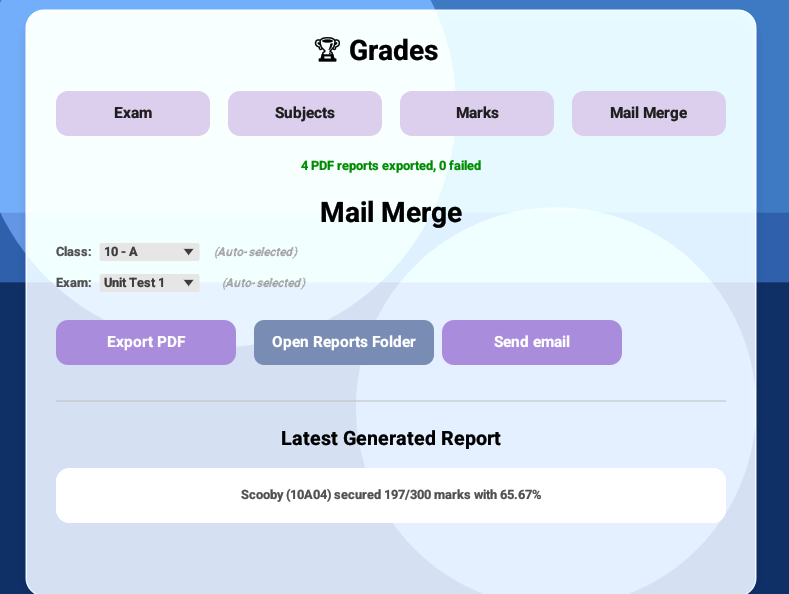
After the PDF reports are created, the application stores the generated PDF folder path and allows the teacher to open that folder directly from the app. This avoids the need to manually browse through the file system to locate the exported reports.
if ui.add(open_btn).clicked() {
    if !self.reports_folder_path.is_empty() {
        match open::that(&self.reports_folder_path) {
            Ok(_) => {}
            Err(err) => {
                self.grade_error = Some(format!("Failed to open folder: {}", err));
                self.grade_error_time = Some(std::time::Instant::now());
            }
        }
    } else {
        self.grade_error = Some("No reports generated yet".to_string());
        self.grade_error_time = Some(std::time::Instant::now());
    }
}
This small convenience feature makes the export workflow smoother inside the desktop app. After the PDF reports are generated, the teacher can open the destination folder immediately and access all exported reports without leaving the application.
Opening the generated PDF folder from the app and viewing the exported PDF reports.
.png)
Click the arrows to view the export flow.
The report generation workflow is now complete: the app can generate student reports as HTML, convert them into PDFs using Chromium, and make the final exported reports directly accessible from the desktop interface.
🎥 Live Demo
The report workflow is now fully connected inside the Teacher Assistant App: marks are turned into HTML reports, converted into PDFs, and stored in a dedicated reports folder for each class and exam.
The demo below shows the complete export flow in action.
✨ Conclusion
The Grades module can now move beyond mark entry and generate report cards that are ready to print, share, or archive. Using HTML as the intermediate layer keeps the report layout flexible, while the PDF export pipeline makes the final output practical for real classroom use.
It also sets up the next stage of the reporting workflow: delivering those generated reports directly from the app.
🚀 Next on Techn0tz
The next post continues from here by adding bulk email delivery for generated student reports. Instead of manually attaching PDFs one by one, the app will prepare report previews, validate missing files or email addresses, and send reports directly to parents from within the Teacher Assistant App.
For more updates stay tuned on Techn0tz