📄 Introduction
One click. Every parent receives the right report.
In the previous post, HTML to PDF Report Export, we generated personalized student reports using reusable HTML templates and converted them into PDF files. Organized by class and exam, these reports were ready for printing, sharing, and further automation.
Now, the Teacher Assistant App takes those PDFs beyond the reports folder. Instead of manually attaching files one by one, teachers can review each delivery, detect missing PDFs or parent email addresses, and send the correct report to each parent from a single interface.
Behind that single action is a structured delivery workflow that matches every student with the correct recipient and PDF, catches missing information before a single email is sent, and keeps the entire delivery process visible from start to finish.
The workflow begins with the Teacher Profile, where the sender credentials required to send reports are configured and stored.
⚙️ Getting the Teacher Profile Ready for Report Delivery
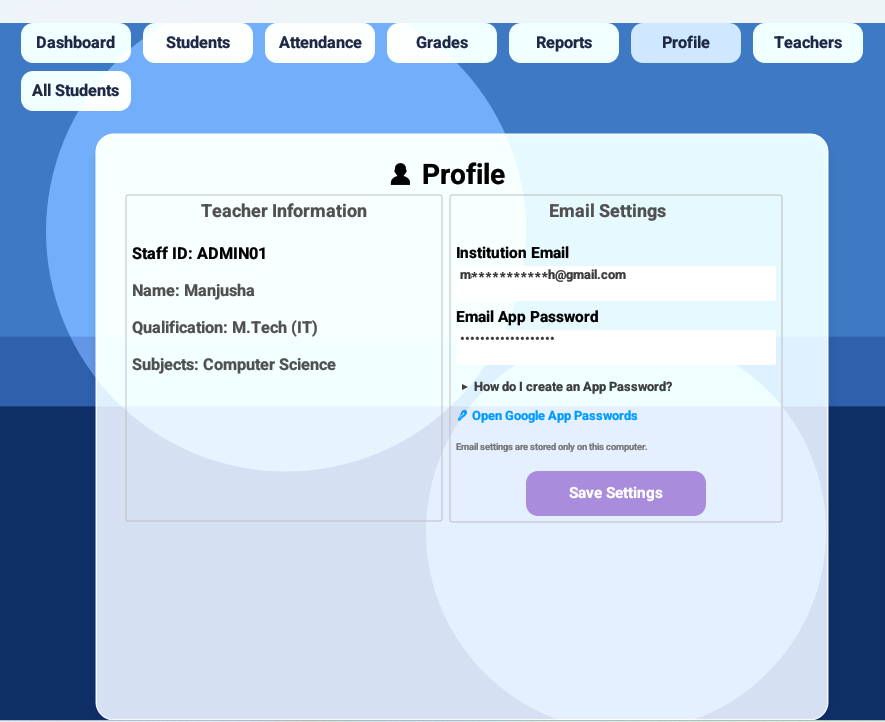
Automated report delivery needs a sender identity before any email can leave the application. The Teacher Profile provides a central place to configure the sender email and credentials, so the teacher does not have to enter them again for every report delivery.
For Gmail-based delivery, the application uses an App Password instead of the teacher’s regular Google account password. An App Password is a separate credential created specifically for application access and can be revoked independently without changing the primary account password.
Security Note: The current development version stores the sender email and Gmail App Password locally in the profile settings file. Although an App Password keeps the primary account password separate, a production release should protect stored credentials using an operating-system credential store or another secure secrets mechanism rather than plain-text configuration.
The Teacher Profile brings these settings together in a single place, making the sender configuration accessible without leaving the applicant
Note: Teachers using Gmail for the first time may not already have an App Password configured. To make the setup process easier, the Teacher Profile includes a built-in expandable help section that explains how to enable Google 2-Step Verification, generate an App Password, and use it for report delivery. It also includes a direct link to the Gmail App Password settings page, allowing teachers to complete the setup without leaving the application.
Screenshot:
Teacher Profile showing the sender email configuration used for automated report delivery.
Click the image to view full size
Behind the profile interface, two small helper functions preserve this configuration between application sessions. save_profile_settings() serializes the sender credentials into the local profile settings file, while load_profile_settings() restores them when the application is opened again.
// Save Profile Settings
fn save_profile_settings(
    &self
) -> Result<(), Box<dyn std::error::Error>> {

    let settings = ProfileSettings {
        smtp_email: self.smtp_email.clone(),
        smtp_password: self.smtp_password.clone(),
    };

    let json = serde_json::to_string_pretty(&settings)?;
    std::fs::write(Self::profile_path(), json)?;

    Ok(())
}

// Load Profile Settings
fn load_profile_settings(
    &mut self
) -> Result<(), Box<dyn std::error::Error>> {

    let path = Self::profile_path();

    if !path.exists() {
        return Ok(());
    }

    let json = std::fs::read_to_string(path)?;
    let settings: ProfileSettings = serde_json::from_str(&json)?;

    self.smtp_email = settings.smtp_email;
    self.smtp_password = settings.smtp_password;

    Ok(())
}
Together, these functions make the email configuration persistent across application sessions. The teacher can save the sender details through the profile and have them restored automatically the next time the application is opened.
This turns the Teacher Profile into more than a collection of personal settings—it becomes the sender identity behind automated report delivery.
Code Explanation:
| Code | Explanation |
|---|---|
ProfileSettings { ... } |
Collects the sender email and App Password entered in the Teacher Profile. |
serde_json::to_string_pretty(&settings) |
Serializes the profile settings into JSON format. |
Self::profile_path() |
Returns the local path used for storing the profile configuration. |
std::fs::write(...) |
Saves the serialized settings so they can be reused later. |
if !path.exists() |
Allows the app to continue normally when no saved profile exists yet. |
std::fs::read_to_string(path) |
Reads the previously saved profile settings. |
serde_json::from_str(&json) |
Converts the stored JSON back into ProfileSettings. |
self.smtp_email / self.smtp_password |
Restores the sender credentials for use by the email delivery workflow. |
Knowing the sender solves only one part of the delivery process. Every student still needs to be matched with the correct parent email and the correct PDF, while missing information must be identified before anything is sent. The next stage of the workflow brings these checks together, allowing the teacher to review the entire delivery before a single report leaves the application.
📋 Reviewing Reports Before Delivery
Bulk report delivery becomes truly useful only when every report is matched with its intended recipient before sending begins. Rather than immediately emailing the generated PDF reports, the Teacher Assistant App first prepares a complete delivery preview for the selected class and exam. A single incorrect attachment or recipient can expose sensitive student information, making this review step just as important as the delivery itself.
For every student, the application locates the corresponding PDF report, retrieves the parent email address, and assigns a delivery status based on the available information. Reports that satisfy all requirements are marked Ready, while missing email addresses or missing PDF reports are clearly highlighted before any email is sent. Previously delivered reports also retain their Sent status, allowing the teacher to distinguish completed deliveries from pending ones.
The prepared delivery information is presented in a confirmation dialog, allowing the teacher to review every recipient, report, and delivery status before approving the batch.
Screenshot:
Delivery preview showing recipient details and report status before delivery.
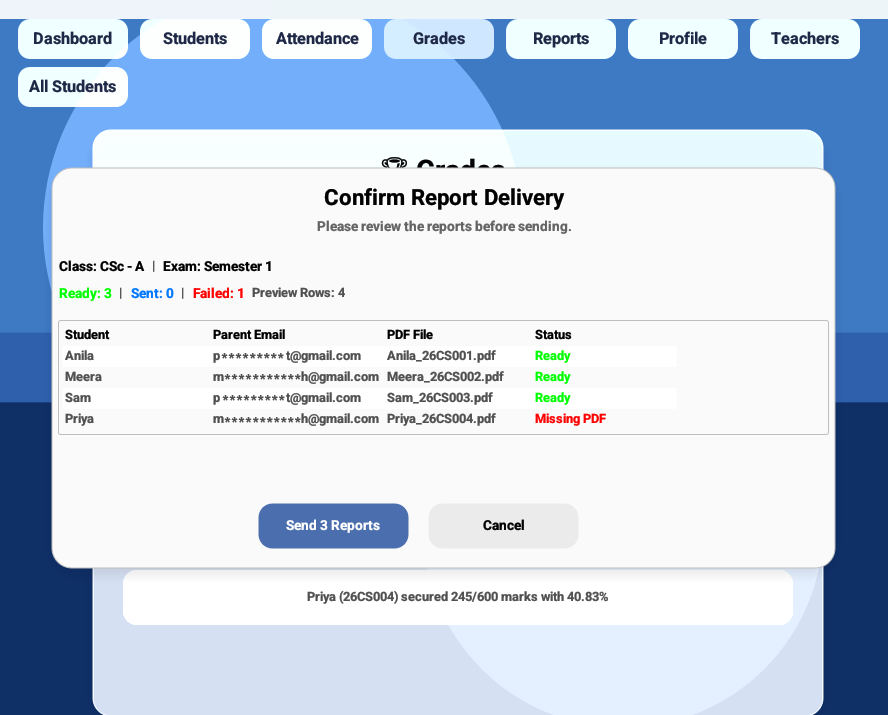
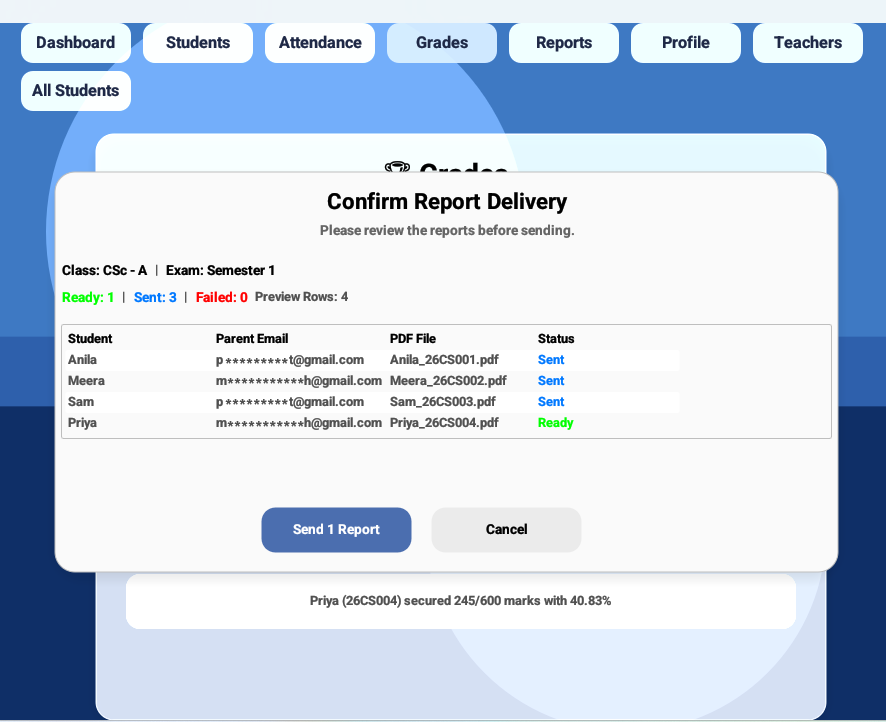
Use the arrows to view both screenshots.
Note: The screenshots use the same parent email address for all students to simplify the demonstration. In practice, each student is associated with a unique parent email, and the application delivers every report to its corresponding recipient.
So what does the generated report actually look like?
Screenshot:
One of the personalized PDF reports ready to be delivered to a parent.
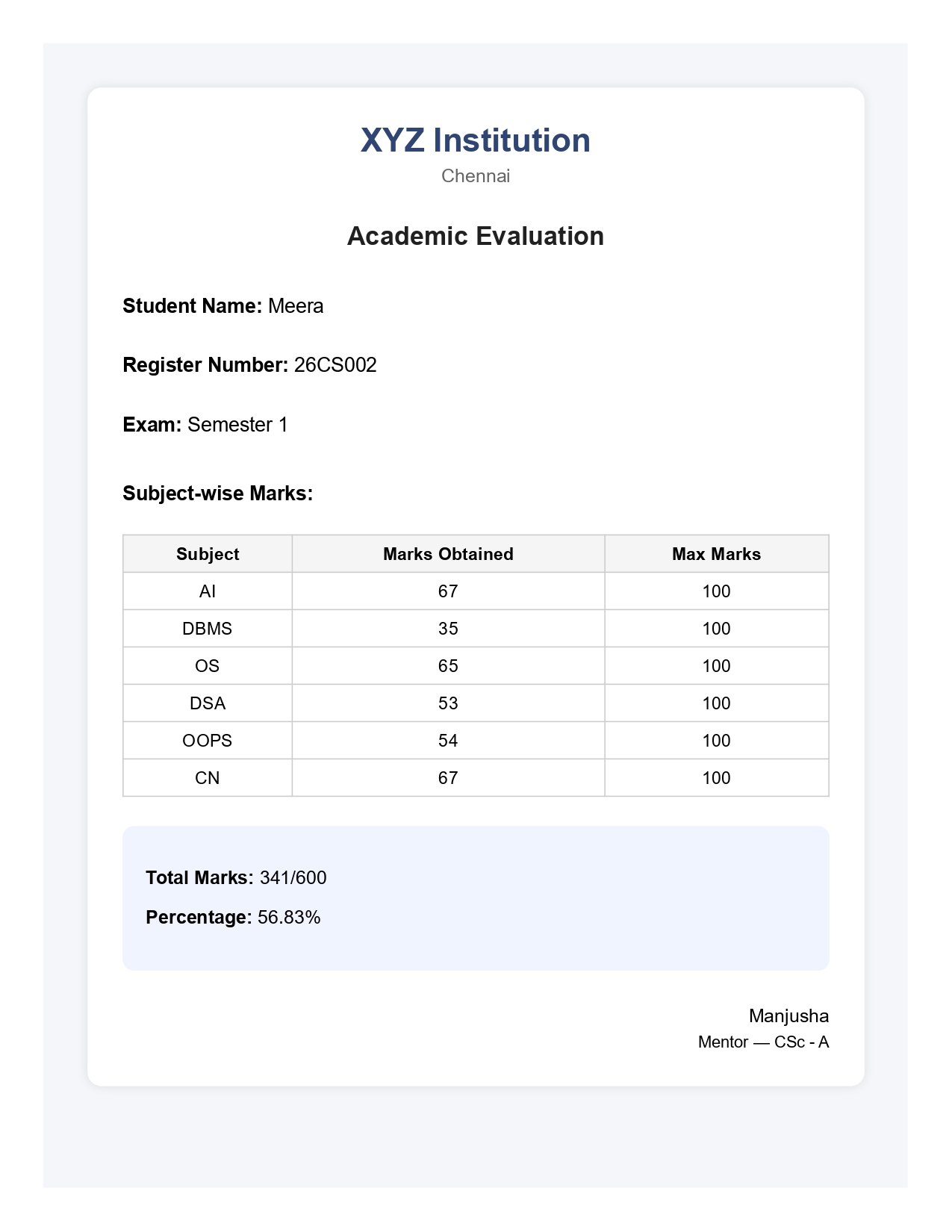
Click the image to view full size
The following loop prepares the delivery preview for every student by determining the recipient, locating the generated PDF report, and assigning an appropriate delivery status.
for student in &self.students {
    let pdf_file = format!(
        "{}_{}.pdf",
        Self::sanitize_filename(&student.student_name),
        student.roll_no
    );

    let pdf_path = pdf_folder.join(&pdf_file);

    let email = student.parent_email
        .clone()
        .unwrap_or_else(|| "No Email".to_string());

    let mut status = if email == "No Email" {
        "Missing Email".to_string()
    } else if !pdf_path.exists() {
        "Missing PDF".to_string()
    } else {
        "Ready".to_string()
    };

    // Preserve Sent status from previous popup
    if let Some(old) = previous_previews
        .iter()
        .find(|p| p.student_name == student.student_name)
    {
        if old.status == "Sent" {
            status = "Sent".to_string();
        }
    }

    self.email_previews.push(EmailPreview {
        student_name: student.student_name.clone(),
        email,
        pdf_file,
        pdf_path: pdf_path.to_string_lossy().to_string(),
        status,
    });
}
The confirmation dialog also summarizes the prepared delivery preview, allowing the teacher to see how many reports are ready for delivery, how many have already been sent, and how many require attention before the delivery process begins.
let ready_count = self.email_previews
    .iter()
    .filter(|p| p.status == "Ready")
    .count();

let sent_count = self.email_previews
    .iter()
    .filter(|p| p.status == "Sent")
    .count();

let failed_count = self.email_previews
    .iter()
    .filter(|p|
        p.status == "Missing PDF"
        || p.status == "Missing Email"
        || p.status == "Email Failed"
    )
    .count();

if ui.add_sized(
    [150.0, 45.0],
    egui::Button::new(
        format!(
            "Send {} Report{}",
            ready_count,
            if ready_count == 1 { "" } else { "s" }
        )
    ),
).clicked() {
    self.trigger_send_emails = true;
    self.show_email_confirm_popup = false;
}
Code Explanation:
| Code | Explanation |
|---|---|
format!("{}_{}.pdf", ...) |
Builds the expected PDF filename using the student’s sanitized name and roll number. |
pdf_folder.join(&pdf_file) |
Locates the generated PDF report for the current student. |
student.parent_email.clone() |
Retrieves the parent’s email address associated with the student. |
"Missing Email" |
Indicates that no recipient email is available for report delivery. |
"Missing PDF" |
Indicates that the student’s report has not been generated or cannot be found. |
"Ready" |
Confirms that both the parent email and PDF report are available for delivery. |
previous_previews.iter().find(...) |
Preserves the Sent status when the preview is opened again. |
self.email_previews.push(...) |
Adds the completed delivery entry to the preview displayed in the confirmation dialog. |
ready_count |
Counts the reports that are ready for delivery. |
sent_count |
Counts reports that have already been delivered successfully. |
failed_count |
Counts reports that cannot be delivered because of missing information or delivery failures. |
"Send {} Report{}" |
Updates the button label dynamically to reflect the number of reports that will be delivered. |
trigger_send_emails = true |
Starts the report delivery workflow after the teacher confirms the batch. |
Only the reports marked Ready move forward for delivery, while entries requiring attention remain visible without interrupting the rest of the batch. This allows the application to continue delivering valid reports instead of failing the entire operation because of a few incomplete records.
Each ready report is then paired with its intended recipient, attached as a PDF, and delivered individually through the configured sender email account.
📧 Delivering Reports to Parents
After the delivery batch has been reviewed and confirmed, the application begins sending reports individually to their intended recipients. Each report is delivered as a separate email with the corresponding student report attached, ensuring that every parent receives only their own student’s report.
The delivery process reads the generated PDF report, creates an personalized email with the report attached, authenticates using the sender credentials stored in the Teacher Profile, and sends the message through Gmail’s SMTP server. Because every report is handled independently, a failed delivery does not prevent the remaining ready reports from being sent.
fn send_email_with_pdf(
        &self,
        recipient: &str,
        pdf_path: &Path,
    ) -> Result<(), Box<dyn std::error::Error>>

    {
        let pdf_bytes = std::fs::read(pdf_path)?;

        let file_name = pdf_path
            .file_name()
            .and_then(|s| s.to_str())
            .unwrap_or("report.pdf");

        let attachment = Attachment::new(file_name.to_string())
            .body(pdf_bytes,"application/pdf".parse()?,);

        let body = SinglePart::builder()
            .header(header::ContentType::TEXT_PLAIN)
            .body(String::from("Please find the attached student report."));

        let email = Message::builder()
            .from(self.smtp_email.parse()?)
            .to(recipient.parse()?)
            .subject("Student Progress Report")
            .multipart(MultiPart::mixed().singlepart(body).singlepart(attachment))?;

        let creds = Credentials::new(self.smtp_email.clone(),
            self.smtp_password.clone(),
        );

        let mailer = SmtpTransport::relay("smtp.gmail.com")?.credentials(creds).build();

        mailer.send(&email)?;

        Ok(())
    }
The function begins by loading the generated PDF report and creating it as an email attachment. It then builds a personalized email using the configured sender account, assigns the parent as the recipient, and attaches the student’s report. Finally, the application establishes a secure SMTP connection using the saved App Password and delivers the email through Gmail’s mail server.
Code Explanation:
| Code | Explanation |
|---|---|
std::fs::read(pdf_path) |
Reads the generated PDF report into memory before attaching it to the email. |
Attachment::new(...) |
Creates a PDF attachment using the generated report file. |
SinglePart::builder() |
Builds the email body shown to the recipient. |
Message::builder() |
Constructs the complete email by specifying the sender, recipient, subject, body, and attachment. |
Credentials::new(...) |
Creates the SMTP authentication credentials using the sender email and App Password stored in the Teacher Profile. |
SmtpTransport::relay("smtp.gmail.com") |
Creates and configures the Gmail SMTP client used to deliver emails. |
mailer.send(&email) |
Sends the completed email together with the attached PDF report. |
Screenshot:
Personalized student report delivered to the parent with the generated PDF attached.
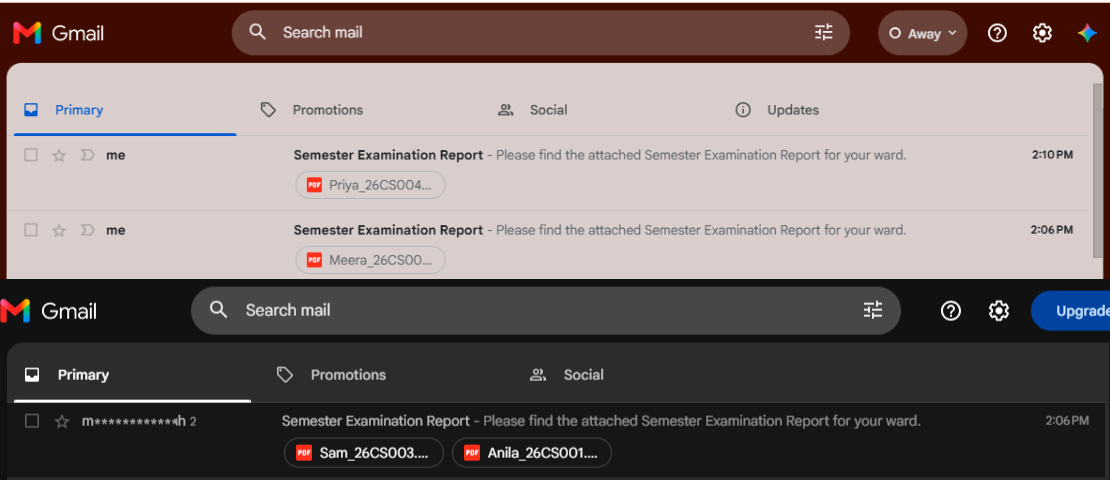
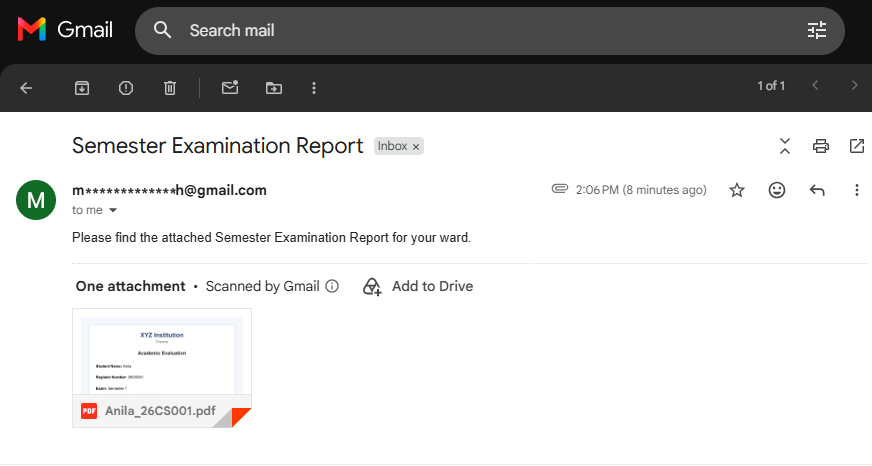
Use the arrows to view both screenshots.
Although every report is delivered individually, the outcome is presented as a single, easy-to-review summary. Successful deliveries are recorded automatically, while reports requiring attention remain clearly identified, giving the teacher immediate feedback on the entire delivery batch.
📊 Report Delivery Summary
Sending the reports marks the end of the delivery process, but it should never leave the teacher wondering what actually happened. Instead of relying on console messages or manually checking every recipient, the Teacher Assistant App presents a delivery summary immediately after the batch completes.
The summary summarizes how many student reports were delivered successfully and lists any reports that could not be sent, together with the reason. This allows the teacher to quickly identify missing email addresses and PDF reports, or other delivery issues that require attention, while confirming that the remaining reports have already reached their intended recipients.
Screenshot:
Reports successfully sent and reports requiring attention.
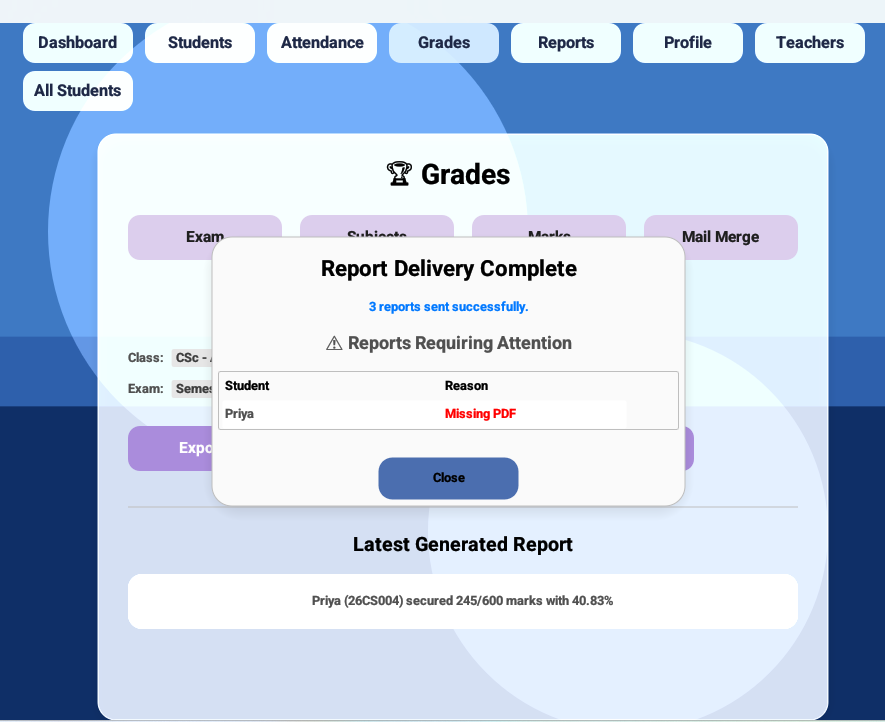
Click the image to view full size
The application automatically collects the delivery results, counting successful reports while preserving reports that could not be delivered for easy review.
ui.colored_label(
    egui::Color32::from_rgb(0, 120, 255),
    format!(
        "{} report{} sent successfully.",
        self.delivery_sent_count,
        if self.delivery_sent_count == 1 { "" } else { "s" }
    ),
);

if !self.delivery_skipped.is_empty() {
    ui.heading("⚠ Reports Requiring Attention");

    for preview in &self.delivery_skipped {
        ui.label(&preview.student_name);
        ui.colored_label(
            egui::Color32::RED,
            &preview.status,
        );
    }
}
After reviewing the results, the teacher can simply close the summary and continue using the application.
if ui
    .add_sized(
        [140.0, 42.0],
        egui::Button::new(
            egui::RichText::new("Close").strong()
        )
    )
    .clicked()
{
    self.show_delivery_summary = false;
}
Code Explanation:
| Code | Explanation |
|---|---|
delivery_sent_count |
Stores the total number of reports delivered successfully during the current batch. |
format!("{} report{} sent successfully.", ...) |
Displays a concise success message summarizing the completed delivery. |
delivery_skipped |
Stores reports that could not be delivered successfully. |
Reports Requiring Attention |
Groups all reports that require teacher intervention instead of silently ignoring delivery issues. |
preview.student_name |
Displays the student associated with the skipped report. |
preview.status |
Shows the reason why the report could not be delivered, such as Missing Email or Missing PDF. |
Close button |
Closes the summary dialog after the teacher reviews the delivery results. |
By presenting both successful deliveries and reports requiring attention in a single summary, the application provides immediate feedback without forcing the teacher to inspect console logs or repeat the entire delivery process. The teacher can quickly identify unresolved issues while knowing that the remaining reports have already been delivered successfully.
The automated report delivery workflow brings every stage together—from configuring the sender account and reviewing the delivery batch to sending personalized PDF reports and presenting a clear delivery summary. The following demonstration shows the complete workflow in action inside the Teacher Assistant App.
🎬 Automated Report Delivery in Action
Throughout this article, we’ve explored each stage of the automated report delivery workflow—from configuring the sender account and reviewing reports before sending to delivering personalized PDF reports and presenting a delivery summary. The following demonstration shows the complete workflow in action inside the Teacher Assistant App, bringing every stage together from start to finish.
✨ Conclusion
Automating report delivery transforms student reporting from a manual, repetitive administrative task into a streamlined workflow. Teachers can generate personalized PDF reports, review recipients before sending, and deliver reports confidently without the repetitive effort of preparing every email individually.
Although this implementation uses Gmail SMTP for email delivery, the overall approach can be adapted to different email providers. It also provides a solid foundation for future enhancements such as customizable email templates, delivery logs, and cloud-based mail services.
More than simply sending emails, the Teacher Assistant App streamlines the entire report delivery process, reducing administrative effort while giving teachers more time to focus on their students.
🚀 Next on Techn0tz
Manually entering marks isn’t always the fastest option when the data already exists in Excel. The next step is making the Teacher Assistant App work with the spreadsheets teachers already use.
In the next article, we’ll build an Excel-based marks import system that automatically creates exams, subjects, and student marks while recalculating totals and percentages from a single import.
Stay tuned to Techn0tz as we continue building the Teacher Assistant App, one feature at a time.