📄 Introduction
The marks are already in Excel. Why enter them again?
In the previous phase of the Grades panel in the Teacher Assistant Level 3 app, Dynamic Grades and Report Generation, marks were entered directly into the application. But there was still one familiar step left out of the picture — many teachers already keep their marks in Excel.
Entering those marks again, student by student and subject by subject, meant doing the same work twice.
Now, instead of typing everything again, the marks sheet can be imported, checked for errors, and saved directly into the Grades section.
This post focuses on how the Excel marks import works, what happens when the sheet contains missing or incorrect data, and how the imported marks move into the rest of the reporting workflow.
Before getting into the import, there have been a few changes to the application since the earlier posts.
🔄 The App Keeps Evolving
The Teacher Assistant App continues to evolve as new features are added. As explored in earlier posts, the app supports two modes: PostgreSQL for organization use and SQLite for the standalone Personal Edition, which is designed for individual teachers. With SQLite, no separate database installation is required.
The standalone version has also received a few changes. Teachers can now create their own login account, while the Dashboard provides a simpler view of key information such as the total number of students, available exams, and the number of students in each class. Navigation has also been refined, and the Profile section now stores teacher details along with email settings.
For this post, the screenshots use the SQLite version of the application.
Create Account
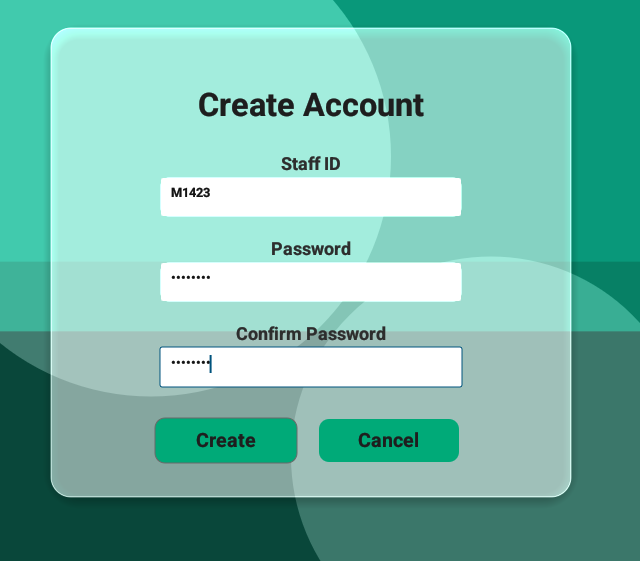
Creating a teacher account in the standalone SQLite version.
Click the image to view full size
Dashboard
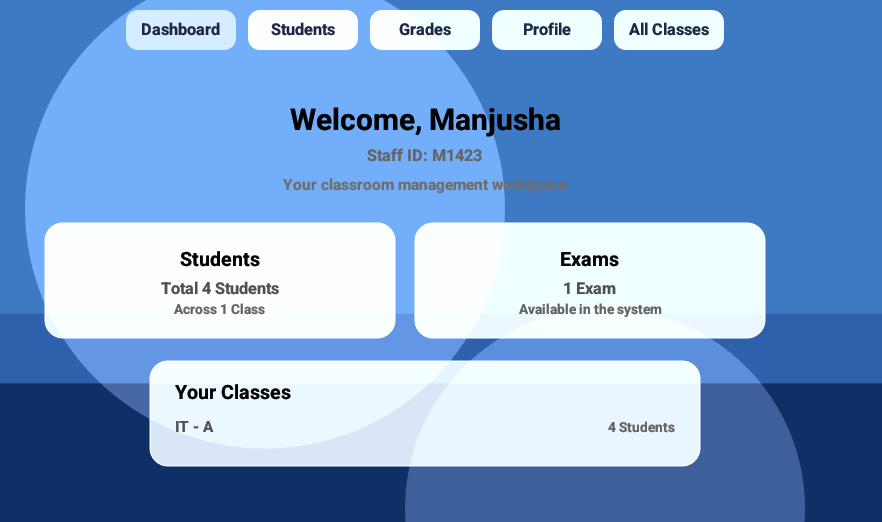
The simplified dashboard after logging in.
Click the image to view full size
Profile
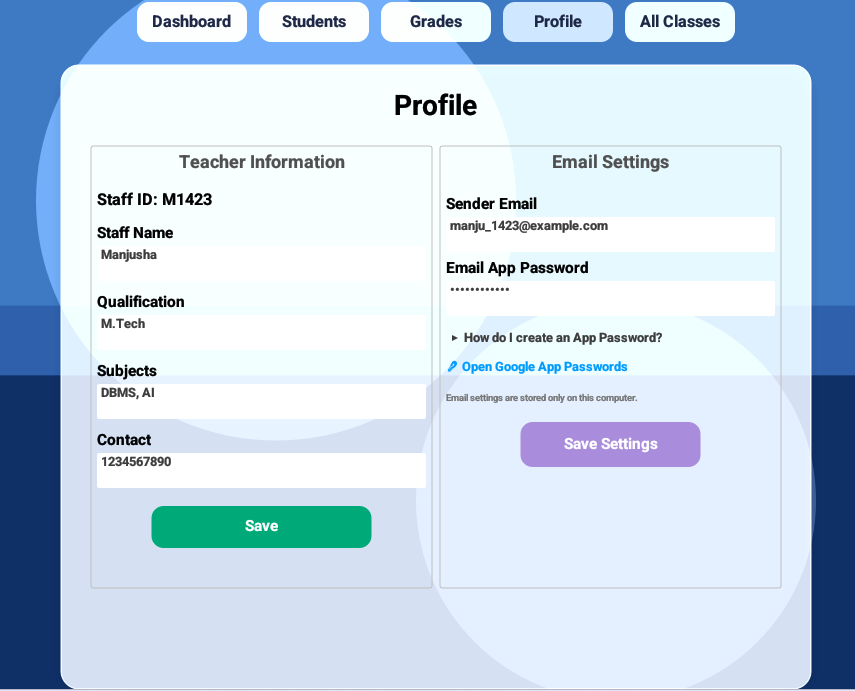
Teacher details and email settings saved in the Profile section.
Click the image to view full size
The information entered in the Profile tab is also stored separately for each teacher in the SQLite database.

Profile details stored separately for each teacher.
Click the image to view full size
These changes provide the updated application context for the workflow we are about to build. Now let’s see how the application handles an Excel marks file before a single mark reaches the database.
📊 The Excel Sheet Behind the Import
The importer requires a consistent format so that it can convert spreadsheet information into grading records.
The Excel sheet used by the Teacher Assistant App keeps the student identifier in the first column, using either Roll No or Reg No, followed by the Student Name. The remaining columns contain the subjects and their marks.
The application does not calculate the total or percentage from the spreadsheet. Those values are calculated later, after the marks have been imported into the Grades system.
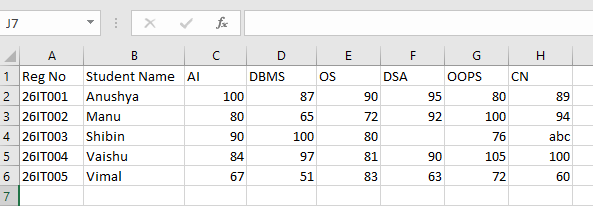
Excel file with five students for importing marks.
Click the image to view full size
Note: The Excel sheet uses Reg No. to identify each student, while the application displays the same identifier as Roll No. For the demo, the Excel sheet intentionally includes missing and invalid marks to demonstrate the validation process.
The importer first reads the column headings to identify the student details and subject columns. It then processes each student row and examines the mark entered under each subject.
A mark can therefore arrive in three different states:
- Value — a valid numeric mark
- Missing — the cell is empty
- Invalid Format — the cell contains something that cannot be interpreted as a mark
This distinction is important because the importer does not treat every problem in the spreadsheet as the same error. Instead, it records what it finds so that the validation stage can decide what should happen next.
The function below handles the initial reading and classification of the Excel data.
pub fn read_marks_from_excel(
    &self,
    path: &str,
) -> Result<Vec<MarksImport>, calamine::XlsxError> {
    let mut workbook: Xlsx<_> = open_workbook(path)?;
    let range = workbook.worksheet_range("Sheet1")?;
    let mut rows = range.rows();
    // First row contains the headers
    let headers = match rows.next() {
        Some(row) => row,
        None => return Ok(Vec::new()),
    };
    let mut identifier_index: Option<usize> = None;
    let mut name_index: Option<usize> = None;
    let mut subject_columns: Vec<(usize, String)> = Vec::new();
    // Identify columns from the header row
    for (index, cell) in headers.iter().enumerate() {
        let header = cell.to_string().trim().to_string();
        if header.eq_ignore_ascii_case("Reg No") || header.eq_ignore_ascii_case("Roll No") {
            identifier_index = Some(index);
        } else if header.eq_ignore_ascii_case("Student Name") {
            name_index = Some(index);
        } else if !header.is_empty() {
            subject_columns.push((index, header));
        }
    }
    let identifier_index = match identifier_index {
        Some(index) => index,
        None => return Ok(Vec::new()),
    };
    let name_index = match name_index {
        Some(index) => index,
        None => return Ok(Vec::new()),
    };
    let mut marks = Vec::new();
    for row in rows {
        if row.len() <= identifier_index || row.len() <= name_index {
            continue;
        }
        let student_identifier = row[identifier_index].to_string().trim().to_string();
        if student_identifier.is_empty() {
            continue;
        }
        let student_name = row[name_index].to_string().trim().to_string();
        let mut subject_marks = Vec::new();
        for (column_index, subject_name) in &subject_columns {
            if *column_index >= row.len() {
                subject_marks.push((subject_name.clone(), ExcelMark::Missing));
                continue;
            }
            let value = row[*column_index].to_string().trim().to_string();
            if value.is_empty() {
                subject_marks.push((subject_name.clone(), ExcelMark::Missing));
            } else if let Ok(mark) = value.parse::<f64>() {
                subject_marks.push((subject_name.clone(), ExcelMark::Value(mark)));
            } else {
                subject_marks.push((subject_name.clone(), ExcelMark::InvalidFormat(value)));
            }
        }
        marks.push(MarksImport {
            student_identifier,
            student_name,
            subject_marks,
        });
    }
    Ok(marks)
}
Code Explanation:
| Code | Explanation |
|---|---|
let mut workbook: Xlsx<_> = open_workbook(path)?; |
Opens the selected Excel workbook. |
let range = workbook.worksheet_range("Sheet1")?; |
Reads the Sheet1 worksheet. |
let mut rows = range.rows(); |
Gets the worksheet rows for processing. |
let headers = match rows.next() { ... }; |
Reads the first row as the column headings. |
let mut identifier_index: Option<usize> = None; |
Stores the position of the Roll No or Reg No column. |
let mut name_index: Option<usize> = None; |
Stores the position of the Student Name column. |
let mut subject_columns: Vec<(usize, String)> = Vec::new(); |
Stores each subject column and its position. |
for (index, cell) in headers.iter().enumerate() |
Examines each heading in the first row. |
header.eq_ignore_ascii_case("Reg No") \|\| header.eq_ignore_ascii_case("Roll No") |
Recognizes either Reg No or Roll No as the student identifier. |
header.eq_ignore_ascii_case("Student Name") |
Identifies the student name column. |
subject_columns.push((index, header)); |
Treats other non-empty headings as subject names. |
for row in rows |
Processes each remaining row as a student record. |
let student_identifier = ... |
Reads the student’s Roll No or Reg No. |
let student_name = ... |
Reads the student’s name. |
for (column_index, subject_name) in &subject_columns |
Processes each subject for the current student. |
ExcelMark::Missing |
Records an empty mark cell as missing. |
ExcelMark::Value(mark) |
Records a numeric value as a valid mark. |
ExcelMark::InvalidFormat(value) |
Records a non-numeric value as an invalid format. |
marks.push(MarksImport { ... }) |
Collects the student and mark information for the next stage. |
Ok(marks) |
Returns the marks read from the Excel file. |
At this stage, the importer has not changed the database. It has only converted the spreadsheet rows into structured data and classified each mark as valid, missing, or invalid.
However, reading the spreadsheet is only the initial part. The application still needs to determine which student, exam, and subject each mark belongs to before anything can be saved.
🔖 From Excel to Grades
Once the Excel data has been read and classified, the application needs to connect it with the existing Grades system.
Before importing the marks, the student details should already be available in the app. This was covered in the earlier Import Student Excel post, where student details are stored in the database.
The teacher first creates an exam under Add Exam in the Grades tab. Once the class and exam are selected in Marks, the Excel file containing the marks can be imported.
The selected exam may not have any subjects or marks at this point. The subjects can be identified from the Excel file during the import, while the marks are read and checked before they are saved.
The import starts when the teacher selects the Excel file. The code snippets below are taken from the single function handle_marks_import().
1️⃣ Selecting the Excel File
The process begins when the teacher clicks Import Excel Marks and selects the .xlsx file containing the marks.
fn handle_marks_import(&mut self) -> Result<(), anyhow::Error> {
    if let Some(path) = rfd::FileDialog::new()
         .add_filter("Excel", &["xlsx"])
        .pick_file()
    {
        let path_str = path.to_string_lossy().to_string();
        self.marks_import_results.clear();
        self.pending_marks_map.clear();
        let marks = self.db.read_marks_from_excel(&path_str)?;

	    //-- Rest of the Code --
	}
    Ok(())
}
Code Explanation:
| Code | Explanation |
|---|---|
FileDialog::new() |
Opens the file selection window. |
.add_filter("Excel", &["xlsx"]) |
Allows the teacher to select an Excel .xlsx file. |
.pick_file() |
Gets the selected file. |
read_marks_from_excel(&path_str) |
Reads the Excel file using the function explained in the previous section. |
marks_import_results.clear() |
Clears the results from the previous import. |
pending_marks_map.clear() |
Clears marks prepared during a previous import. |
The selected file is now available to the import process, along with the student and subject information extracted from it.
The next step is to connect those subjects with the exam selected by the teacher.
2️⃣ Subjects comes from the Excel
Before importing the marks, it is not necessary to manually create each subject. The subject names are obtained directly from the column headings in the Excel file.
The application collects the subject names and removes duplicates before creating or loading them for the selected exam. Subject names are compared after normalization so that minor differences in formatting do not result in duplicate subjects.
fn handle_marks_import(&mut self) -> Result<(), anyhow::Error> {
    {
	// Selecting the Excel file and reading its contents
        //-- Code --

        // Create/Load subjects from Excel headers
        let mut excel_subject_names: Vec<String> = Vec::new();
        for row in &marks {
            for (subject_name, _) in &row.subject_marks {
                if !excel_subject_names.iter().any(|existing| {
                    Self::normalize_subject_name(existing)
                        == Self::normalize_subject_name(subject_name)
                }) {
                    excel_subject_names.push(subject_name.clone());
                }
            }
        }
        for subject_name in &excel_subject_names {
            pollster::block_on(self.db.get_or_create_subject(exam_id, subject_name, 100))?;
        }

	    //-- Rest of the code --
    }
    Ok(())
}
Code Explanation:
| Code | Explanation |
|---|---|
excel_subject_names |
Stores the unique subject names found in the Excel file. |
for row in &marks |
Goes through the imported student records. |
row.subject_marks |
Gets the subjects found for each student. |
normalize_subject_name(...) |
Compares subject names after normalizing their formatting. |
excel_subject_names.push(...) |
Adds a subject when it has not already been collected. |
get_or_create_subject(...) |
Creates the subject for the selected exam if it does not already exist, or loads the existing subject. |
The subjects required for the selected exam are now available to the import process.
3️⃣ Who Does This Mark Belong To?
To associate each mark with the correct student, the application needs to identify the student for each Excel row.
The Roll No or Reg No from the Excel file is used to search for the student in the database. The identifier is the primary connection between the spreadsheet and the existing student record.
Finding the student is not the only check. The name from Excel is also compared with the name stored in the database. This provides an additional verification step and helps detect cases where the identifier is correct but the student name does not match.
fn handle_marks_import(&mut self) -> Result<(), anyhow::Error> {
    {
	// Selecting the Excel file and reading its contents
        //-- Code --

        // Create/Load subjects from Excel headers
        //-- Code --

        for row in &marks {
            let student = pollster::block_on(
                self.db.find_student_for_marks_import(&row.student_identifier),)?;
            match student {
                Some((student_id, db_name)) => {
                    let name_matches = row.student_name.trim().eq_ignore_ascii_case(db_name.trim());
                    if !name_matches {
                        println!(
                            "WARNING: Student name mismatch — Excel: '{}', Database: '{}'",
                            row.student_name, db_name
                        );
                    } else {
                        println!("Student name MATCH");
                    }
                }
            }
        }
		//-- Rest of the code --
    }
    Ok(())
}
Code Explanation:
| Code | Explanation |
|---|---|
for row in &marks |
Processes each student record read from the Excel file. |
row.student_identifier |
Gets the Roll No or Reg No used to find the student. |
find_student_for_marks_import(...) |
Searches for the student in the database. |
Some((student_id, db_name)) |
Continues when a matching student is found. |
None |
Represents the case where the student is not found. |
row.student_name |
Gets the student’s name from Excel. |
db_name |
Gets the student’s name stored in the database. |
eq_ignore_ascii_case(...) |
Compares the two names without treating upper- and lower-case letters differently. |
!name_matches |
Detects a mismatch between the Excel name and the stored name. |
This additional name check helps catch inconsistencies before the marks are processed.
4️⃣ Check Before Saving
A mark in an Excel cell is not automatically a valid mark.
Before a value is prepared for saving, the application checks the subject, student, and mark associated with it. It first matches the subject with the selected exam and then verifies whether the mark falls within the allowed range.
Empty cells and values that cannot be interpreted as numbers are handled separately. This prevents incorrect data from being saved along with valid marks.
The following part of the import process performs these checks:
fn handle_marks_import(&mut self) -> Result<(), anyhow::Error> {
    {
	// Selecting the Excel file and reading its contents
        //-- Code --

        // Create/Load subjects from Excel headers
        //-- Code --

        // Check Student and Verify
        //-- Code --

	// Validation and prepare marks for saving
        for (excel_subject, mark) in &row.subject_marks {
            let matched_subject = self.subjects.iter().find(|subject| {
                Self::normalize_subject_name(&subject.subject_name)
                    == Self::normalize_subject_name(excel_subject)
            });
            match matched_subject {
                Some(subject) => match mark {
                    ExcelMark::Value(value) => {
                        if !name_matches {
                            import_results.push(MarkImportResult {
                                student_identifier: row.student_identifier.clone(),
                                student_name: row.student_name.clone(),
                                database_student_name: Some(db_name.clone()),
                                subject_name: excel_subject.clone(),
                                marks: Some(*value),
                                rounded_marks: None,
                                status: MarkImportStatus::StudentNameMismatch,
                            });
                        } else if *value < 0.0 || *value > subject.max_marks as f64{
                            import_results.push(MarkImportResult {
                                student_identifier: row.student_identifier.clone(),
                                student_name: row.student_name.clone(),
                                database_student_name: Some(db_name.clone()),
                                subject_name: excel_subject.clone(),
                                marks: Some(*value),
                                rounded_marks: None,
                                status: MarkImportStatus::InvalidMarks,
                            });
                        } else {
                            let rounded_mark = value.round() as i32;
                            if (*value - rounded_mark as f64).abs() > f64::EPSILON {
                                println!("MARK ROUNDED: {} → {}",value, rounded_mark);
                            }
                            import_results.push(MarkImportResult {
                                student_identifier: row.student_identifier.clone(),
                                student_name: row.student_name.clone(),
                                database_student_name: Some(db_name.clone()),
                                subject_name: excel_subject.clone(),
                                marks: Some(*value),
                                rounded_marks: Some(rounded_mark),
                                status: MarkImportStatus::Valid,
                            });
                            marks_map.insert((student_id as i64, subject.subject_id),rounded_mark,);
                        }
                    }
                    ExcelMark::Missing => {
                        import_results.push(MarkImportResult {
                            student_identifier: row.student_identifier.clone(),
                            student_name: row.student_name.clone(),
                            database_student_name: Some(db_name.clone()),
                            subject_name: excel_subject.clone(),
                            marks: None,
                            rounded_marks: None,
                            status: MarkImportStatus::MissingMark,
                        });
                    }
                    ExcelMark::InvalidFormat(value) => {
                        println!("INVALID MARK FORMAT: {} → '{}'",excel_subject, value);
                        import_results.push(MarkImportResult {
                            student_identifier: row.student_identifier.clone(),
                            student_name: row.student_name.clone(),
                            database_student_name: Some(db_name.clone()),
                            subject_name: excel_subject.clone(),
                            marks: None,
                            rounded_marks: None,
                            status: MarkImportStatus::InvalidMarkFormat,
                        });
                    }
                },
                None => {
                    let marks_value = match mark {
                        ExcelMark::Value(value) => Some(*value), _ => None,
                    };
                    import_results.push(MarkImportResult {
                        student_identifier: row.student_identifier.clone(),
                        student_name: row.student_name.clone(),
                        database_student_name: None,
                        subject_name: excel_subject.clone(),
                        marks: marks_value,
                        rounded_marks: None,
                        status: MarkImportStatus::SubjectNotFound,
                    });
                }
            }
        }
        None => {
            for (excel_subject, mark) in &row.subject_marks {
                let marks_value = match mark {
                    ExcelMark::Value(value) => Some(*value), _ => None,
                };
                import_results.push(MarkImportResult {
                    student_identifier: row.student_identifier.clone(),
                    student_name: row.student_name.clone(),
                    database_student_name: None,
                    subject_name: excel_subject.clone(),
                    marks: marks_value,
                    rounded_marks: None,
                    status: MarkImportStatus::StudentNotFound,
                });
            }
        }
    }
    Ok(())
}
Code Explanation:
| Code | Explanation |
|---|---|
for (excel_subject, mark) in &row.subject_marks |
Processes each subject and its mark from the Excel row. |
matched_subject |
Looks for the corresponding subject for the selected exam. |
normalize_subject_name(...) |
Compares subject names consistently, even when there are small formatting differences. |
ExcelMark::Value(value) |
Handles a numeric mark read from Excel. |
!name_matches |
Detects a mismatch between the Excel student name and the database name. |
*value < 0.0 |
Checks whether the mark is below zero. |
*value > subject.max_marks as f64 |
Checks whether the mark exceeds the subject’s maximum mark. |
let rounded_mark = value.round() as i32 |
Rounds a valid decimal value before preparing it for saving. |
marks_map.insert(...) |
Stores the valid mark using the student and subject as the key. |
ExcelMark::Missing |
Handles an empty mark cell. |
ExcelMark::InvalidFormat(value) |
Handles a value that cannot be interpreted as a number. |
None |
Handles a subject that could not be matched. |
The import therefore does more than simply read numbers from Excel. Each value is classified according to what the application finds.
| Situation | Result |
|---|---|
| Mark is within the allowed range | Valid |
| Mark is below 0 or above the maximum | Invalid Marks |
| Mark cell is empty | Missing Mark |
| Mark contains an invalid value | Invalid Mark Format |
| Subject cannot be matched | Subject Not Found |
| Student name does not match | Student Name Mismatch |
| Student cannot be found | Student Not Found |
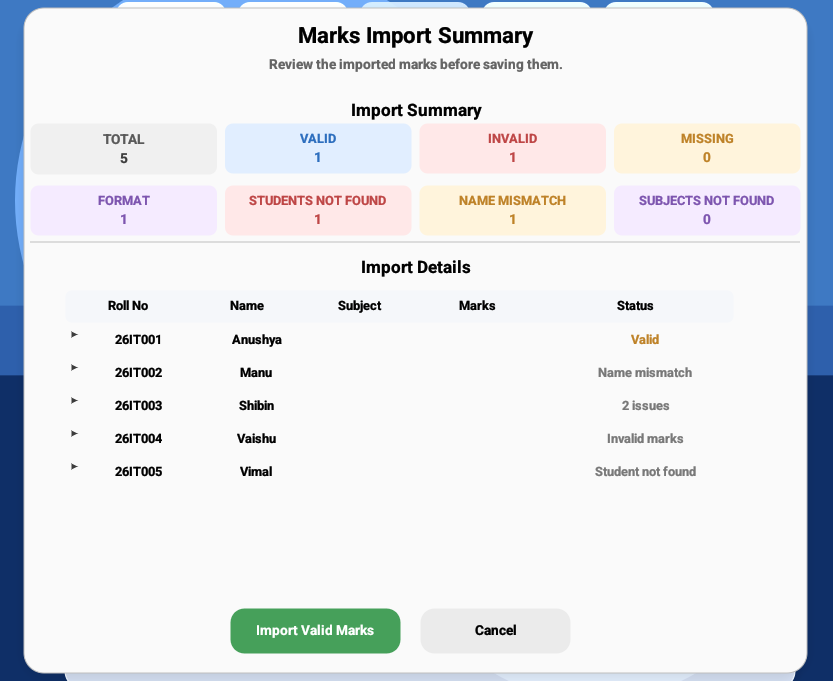
Marks import summary showing the validation results for five student records.
Click the image to view full size
These results are kept separate so the teacher can see which records can be imported and which need attention. Only valid marks are added to marks_map; missing, invalid, or mismatched records are left in the import results.
The marks_map now contains the valid marks ready for the database operation. Each entry connects a student and subject with its validated mark.
💾 Where the Marks Finally Go
The save_marks_bulk() function takes the validated marks and writes them to the grades table.
 pub async fn save_marks_bulk(
    &self,
    exam_id: i64,
    marks_map: HashMap<(i64, i64), i32>,
) -> Result<(), sqlx::Error> {
    let mut tx = self.pool.begin().await?;
    for ((student_id, subject_id), marks) in marks_map {
        sqlx::query(
            r#"
            INSERT INTO grades (student_id, subject_id, exam_id, marks_obtained)
            VALUES ($1, $2, $3, $4)
            ON CONFLICT (student_id, subject_id, exam_id)
            DO UPDATE SET marks_obtained = EXCLUDED.marks_obtained
            "#,
        )
        .bind(student_id)
        .bind(subject_id)
        .bind(exam_id)
        .bind(marks)
        .execute(&mut *tx)
        .await?;
    }

    tx.commit().await?;
    Ok(())
}
Code Explanation:
| Code | Explanation |
|---|---|
save_marks_bulk(...) |
Receives the selected exam and the collection of validated marks. |
marks_map: HashMap<(i64, i64), i32> |
Contains the student ID, subject ID, and mark. |
self.pool.begin().await? |
Starts a database transaction. |
for ((student_id, subject_id), marks) in marks_map |
Processes each validated mark from the import. |
INSERT INTO grades |
Adds the student’s mark to the grades table. |
.bind(student_id) |
Supplies the student ID. |
.bind(subject_id) |
Supplies the subject ID. |
.bind(exam_id) |
Supplies the selected exam ID. |
.bind(marks) |
Supplies the validated mark. |
ON CONFLICT ... DO UPDATE |
Updates the existing mark when the same student, subject, and exam already have a record. |
tx.commit().await? |
Commits the transaction and makes the imported marks permanent in the database. |
The function saves all the imported marks within a single database transaction. The changes are committed only when all operations succeed, thus preventing a partial update if something goes wrong.
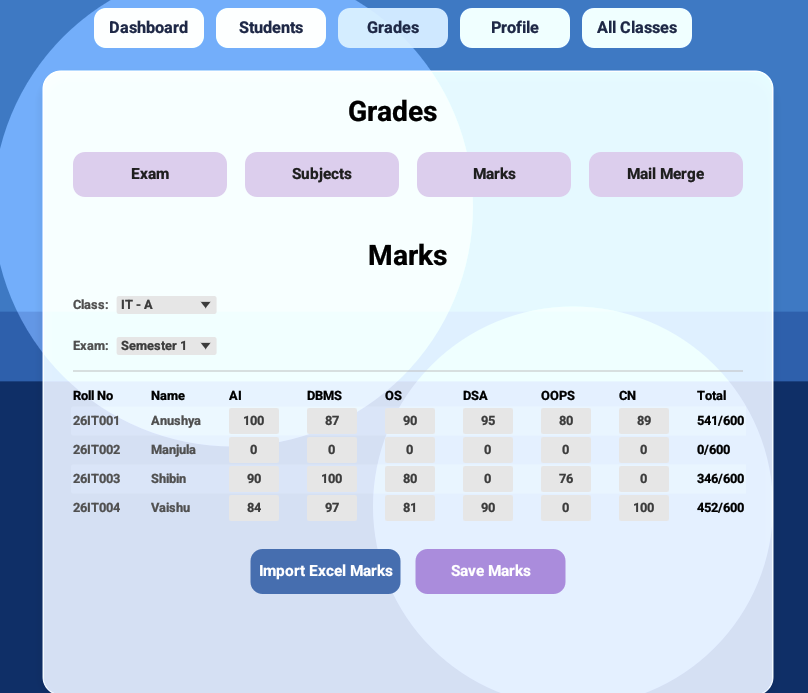
Grades table showing the valid marks saved from the Excel import.
Click the image to view full size
The Excel import has now completed its main job. The valid marks are stored in the same grades data used by the rest of the application.
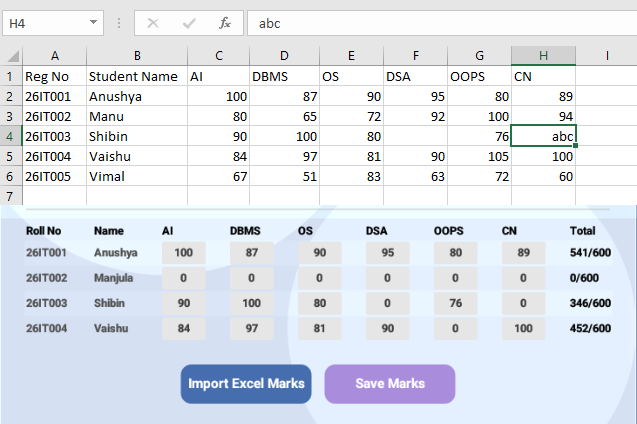
Comparing the original Excel marks with the imported values in the Grades table.
Click the image to view full size
Note: In the above screenshot, the Valid marks are imported. Invalid / missing entries remain 0
This means the existing Grades and Reports workflow does not need a separate path for Excel imports. Once the marks are saved, they can flow through the same calculations and report-generation features already used by the application.
🗂️ The Marks Don’t Stop at the Grades Tab
The imported marks now appear in the application’s existing reporting workflow, without requiring a separate report-generation process.
PDF Report
The reports can be exported as a PDF for sharing or keeping as an academic record.
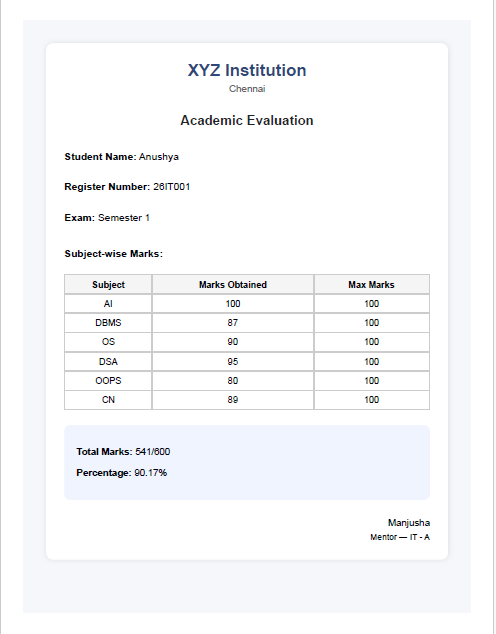
PDF version of the student report generated from the imported marks.
Click the image to view full size
The generated PDF can also be used in the application’s existing email workflow, where it is prepared for delivery to the parent.
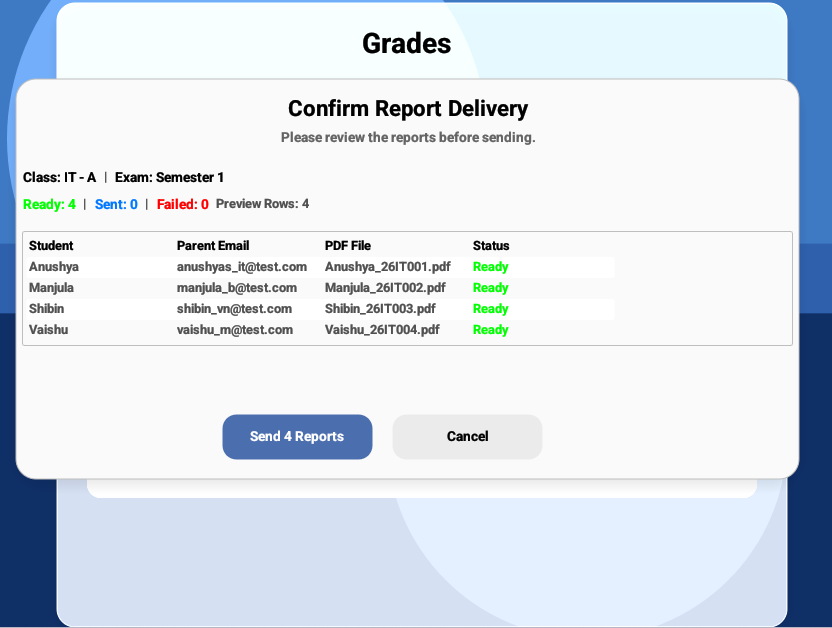
Student report prepared for email delivery, with the PDF attachment ready to send.
Click the image to view full size
This completes the workflow:
Excel Marks → Validation → Grades → PDFs → Email
A teacher can start with marks already available in Excel, import and validate them in the Grades section, and continue using the same saved data for PDFs, and email delivery.
🎬 Import in Action
The code explains how the importer works, but the complete workflow is easier to see in the application itself. The demo below shows the process from selecting the Excel file through validation and saving the valid marks.
📜 Conclusion
Excel import adds another entry point to the Grades workflow without changing the existing reporting system.
More importantly, the feature keeps the application flexible without creating a separate path for spreadsheet-based marks. Whether marks are entered directly in the application or brought in through Excel, they become a part of the same Grades data and can continue through the application’s existing workflow.
This makes Excel import more than a file-upload feature. It connects a familiar teacher workflow with the features already available in the Teacher Assistant App.
🔜 Next on Techn0tz
The next post will take the Excel marks import one step further with a Try Now version of the workflow.
Instead of only watching the feature in the application, you will be able to explore the import process directly in the browser using sample student data and Excel files.
See you in the next post on 🚀Techn0tz.